Every feature of Infinite Vault: secure photo storage for iPhone
Infinite Vault is secure photo storage for your iPhone: a locked, encrypted Vault that holds photos, videos, audio and documents, with Import that removes the originals from your library. This page lists every feature, says which plan each one needs, and links to the guide that shows the steps.
On this page
Plan tags
Every feature carries a tag that shows the plan it needs.
Free
Included on every plan. Free holds up to 100 photos, 10 videos and 4 Collections.
Ultima
฿79 a week, ฿699 a year with 14 days free, or ฿1,490 once. No limits on photos, videos or Collections, plus every feature with this tag.
Lock and unlock: how to lock photos on iPhone
Choose how to lock photos on iPhone: a PIN, a Password or a Pattern, with Face ID as an optional shortcut. These features decide who gets in, and what happens when someone tries.
Vault Passcode: PIN, Password or Pattern Free
You choose how the Vault opens: a 6-digit PIN, a Password of letters, digits and symbols, or a Pattern. This Vault Passcode is separate from your iPhone's own passcode. You can change the type later in Settings.
Face ID is an optional shortcut that you can switch on or off at any time. If a scan fails, the app asks for your Vault Passcode, never your iPhone's passcode. If a new face is added to the phone, Face ID unlock switches off until you enter the Vault Passcode once.
A Pattern is drawn on a flat grid of 25 dots. Drag your finger from dot to touching dot, diagonals included, through 6 to 8 dots, each dot once, then draw it again to confirm. The line stays visible while you unlock, so draw it where nobody is watching.
The app gives you 9 words during setup. Write them down, then type 3 of them to confirm. The Seed phrase resets a forgotten passcode and is the only key that opens a Backup. If you forget both, nobody can open the Vault, including us.
A guided reset takes you back in with Face ID, if you switched it on, or with your Seed phrase. Your Vault's contents are not touched. To change the type, for example from a PIN to a Pattern, use Settings.
Three wrong attempts in a row make you wait 10 minutes, four make it 30 minutes, five make it 1 hour, and six or more make it 2 hours each time. A correct unlock resets the count. Wrong Seed phrase attempts count toward the same wait, and the Seed phrase can still be used while a wait is running.
The Vault locks as soon as the app leaves the screen, and its preview in the app switcher is hidden. Audio stops when it locks. An Import or Backup already running keeps going in the background, and nothing can be viewed until you unlock again.
While the screen is being recorded or mirrored, through AirPlay or a cable, lock and passcode screens hide their content on every plan. The open Vault hides too when Screenshot Protection (Ultima) is on.
A switch in Settings that tries to blank the Vault in screenshots. iOS has no supported way to block them, so an iOS update may stop it working.
Import and organise: hide photos on iPhone
Hide photos on iPhone by moving them in, not copying them, then keep them tidy with Collections, Categories and search.
Import from Photos Free
Select photos and videos, tap Import, and they move into the Vault while the originals are removed in the same step. iOS asks you once to confirm the delete, and the app cannot skip that question. You can pick many Items at once and choose which Collection they go into.
After your first Import the app shows one note, once. Deleted originals wait in Photos' Recently Deleted for 30 days, and the app cannot empty that for you. Deleting on this iPhone also deletes from iCloud and your other devices.
Write a note from the Import button: a name, your text, and a live count of words and characters. It saves as a .txt file in the Vault, and Home has a Notes category.
Import that checks iCloud photos Free
For a photo stored in iCloud, the app downloads the full original first, saves it in the Vault and checks that it is complete. Only then does it delete the original. Anything that failed stays in your library, and the app tells you how many.
A Collection is a named group of Items of any type, and Collections can be nested to any depth. Free holds up to 4 Collections and Ultima has no limit. Favorites, which the app makes for you, does not count toward that limit.
Give each Collection its own icon, chosen from 44 Iconoir glyphs, and one of 14 colours. The badge shows on Home and in the Collections list, so you can tell them apart at a glance.
Any Collection can have its own passcode on top of the Vault Passcode. It truly encrypts that Collection's Items under their own key, not just hides them, and until you unlock it they stay out of search and Duplicate Detection. A forgotten Collection passcode is reset with the Seed phrase only.
Photos, Videos, Audio and Documents each show the matching Items from every Collection in one view. Items in a locked Collection stay out of every Category until that Collection is unlocked.
Select many Items at once, then Export them, gather them into a Sub Collection, Move them or delete them. Move shows your Collections as a tree, and a locked Collection asks for its passcode before Items move in.
Search a Collection or a Category by name, date and type. Sort by date added, date taken, name, size or type, newest or oldest first, A to Z or Z to A.
Favorites Free
Tap the heart on an Item to add it to Favorites. Favorites is a Collection the app makes for you, it hides while empty, and it does not count toward your plan's Collection limit.
Viewing and media: secure photo storage you can open in the app
Hide files on iPhone without losing the ability to use them. Photos, videos, audio, PDFs and Office documents all open inside the app, and your originals are kept byte for byte.
Viewer Free
Photos and videos open full screen, with a filmstrip of neighbouring photos or a scrubber for video. Photos have Share, Play, Favorite, Info and Delete; videos and files have Share, Move, Export, Info and Delete. Delete moves the Item to Vault Trash.
Audio Free
The Audio Category plays recordings, music and other audio inside the app, and a row expands in place into a player. Audio stops when the Vault locks.
Slideshow Free
Press Play on a photo to start a slideshow. Choose 2, 3, 5 or 10 seconds per photo, and switch Loop and Shuffle on or off.
PDFs and Office documents Free
PDFs and Office documents open inside the app using iOS Quick Look, so you can read them without leaving the Vault. Files show as a list with their type, size and date.
Item info Free
Info shows an Item's name, dates, size, dimensions, Collection and, when the file has one, the place. A label confirms that the original is kept byte for byte, with dates, location and Live Photos, so exporting gives back the same file.
Export Items back to the photo library or to the Files app, including an external drive plugged into the phone. You can also share out through the iPhone share sheet, to AirDrop, other apps or Save to Files.
Private tools: a private browser app and a private camera
A private browser app, a private camera app and a way to share files with one phrase.
Private camera Free
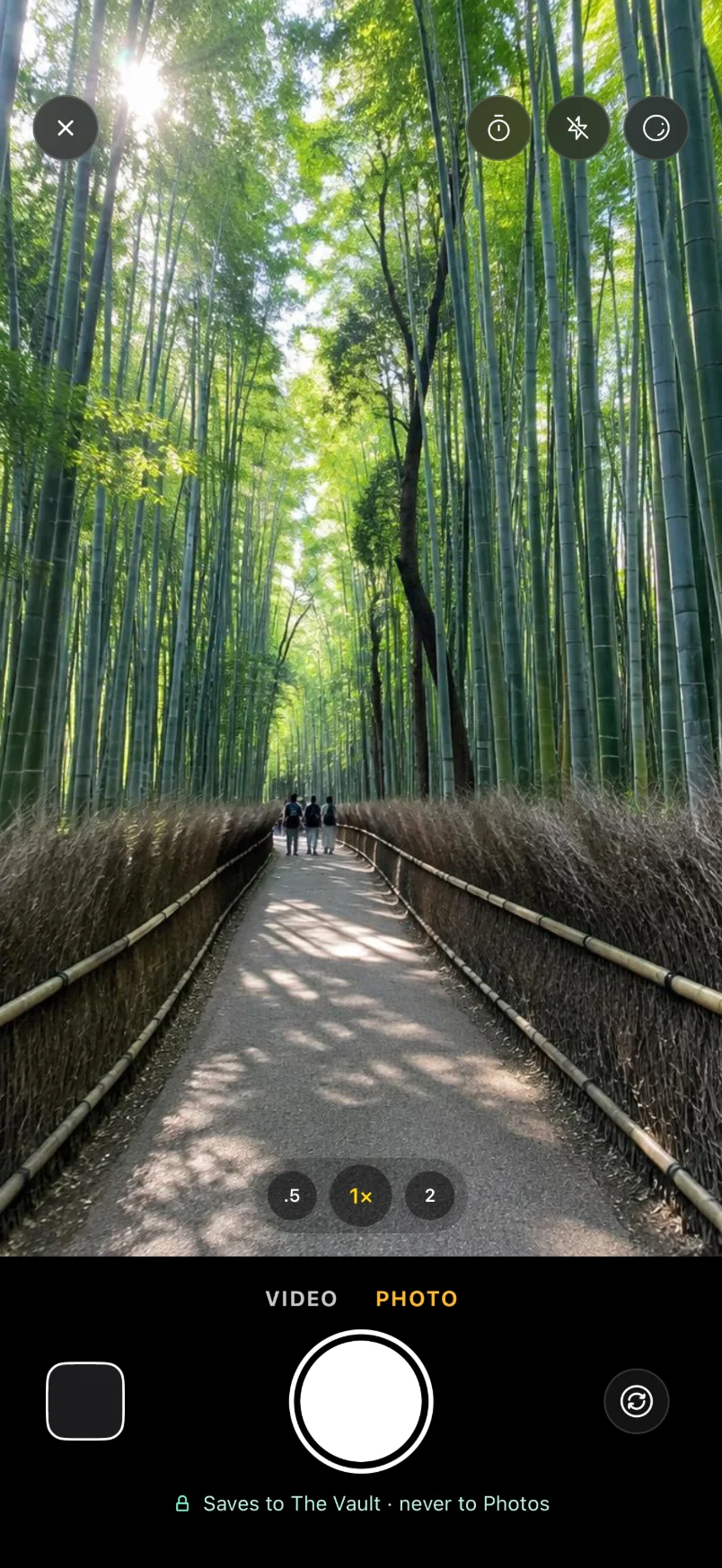
Photos and videos taken inside the app go straight into a Collection of your choice and never appear in the Photos app. Open it from Import, then switch between VIDEO and PHOTO. A line under the shutter tells you which Collection it saves to.
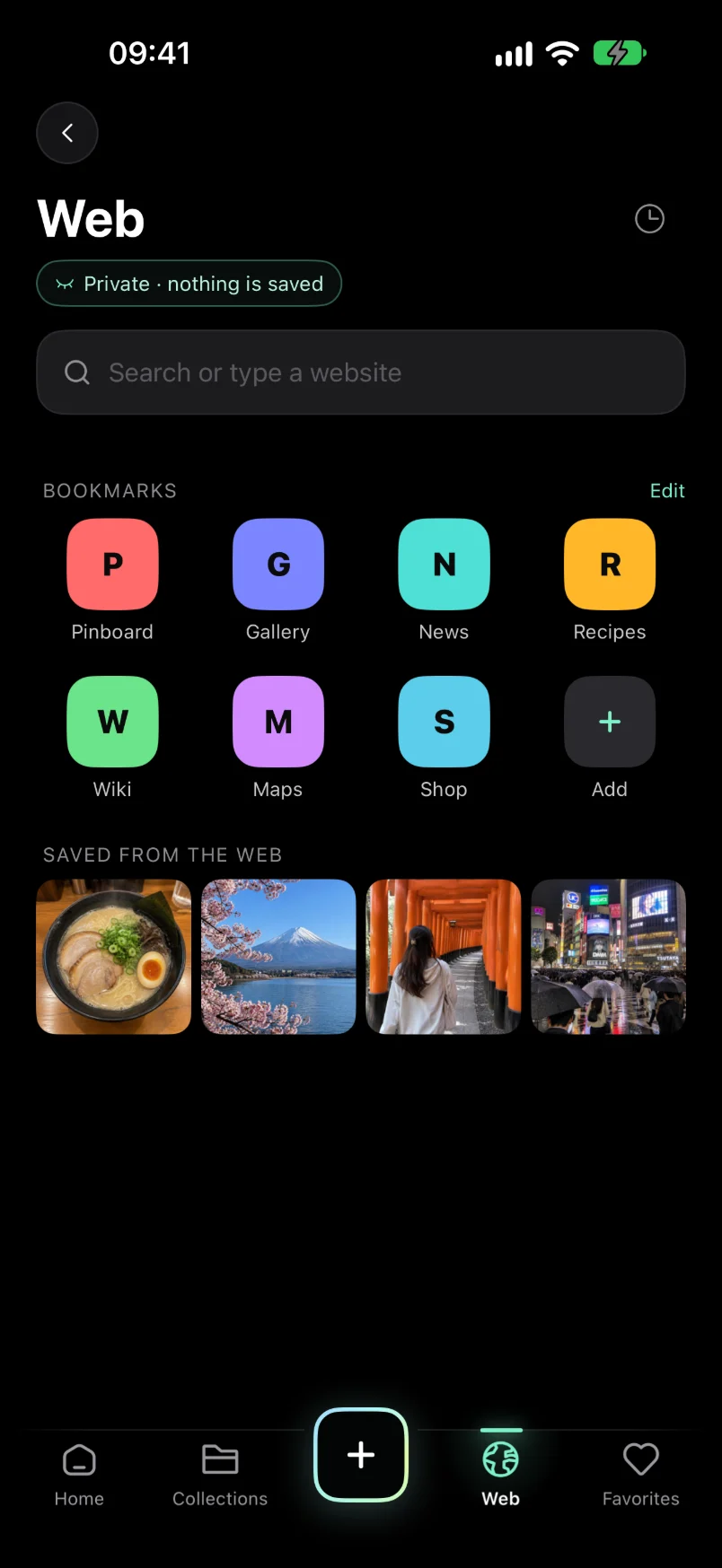
The Web tab is a browser built on Apple's WebKit, the only engine iOS allows for normal apps. It is always private, like an incognito window: cookies, cache and logins live in memory only and vanish when the Vault locks or the tab closes. It also locks with the Vault and hides in the app switcher.
Bookmarks and history are stored inside the Vault, encrypted. History is grouped by day and can be cleared. A Downloads list shows files in progress and files saved.
Touch and hold an image or video on a page, then choose Save to Vault and pick a Collection, or Save to Photos. Links to files such as a PDF, video or zip download straight into the Vault. Only files the page actually serves can be saved, so streaming sites that block downloads stay blocked.
Send chosen Items or a Collection as one encrypted file through any chat app, with its own phrase: 9 generated words, or 6 to 9 you type. Send the phrase a different way. Choose when it stops opening: after 1, 3, 7, 14 or 30 days. Your friend opens it in Infinite Vault on any plan and can only look, and the app deletes it on the date. Receiving is free. Expiry is enforced by your friend's app, and another camera can still photograph the screen.
Protection: a Decoy Vault, a disguised icon and more
For the moment someone else picks up your phone: a Decoy Vault behind a second passcode, like the decoy apps people look for, an icon that looks like something else, and a photo of whoever keeps guessing. Only the icon is disguised; the app is not a fake calculator.
Break-in Photo and Report Ultima
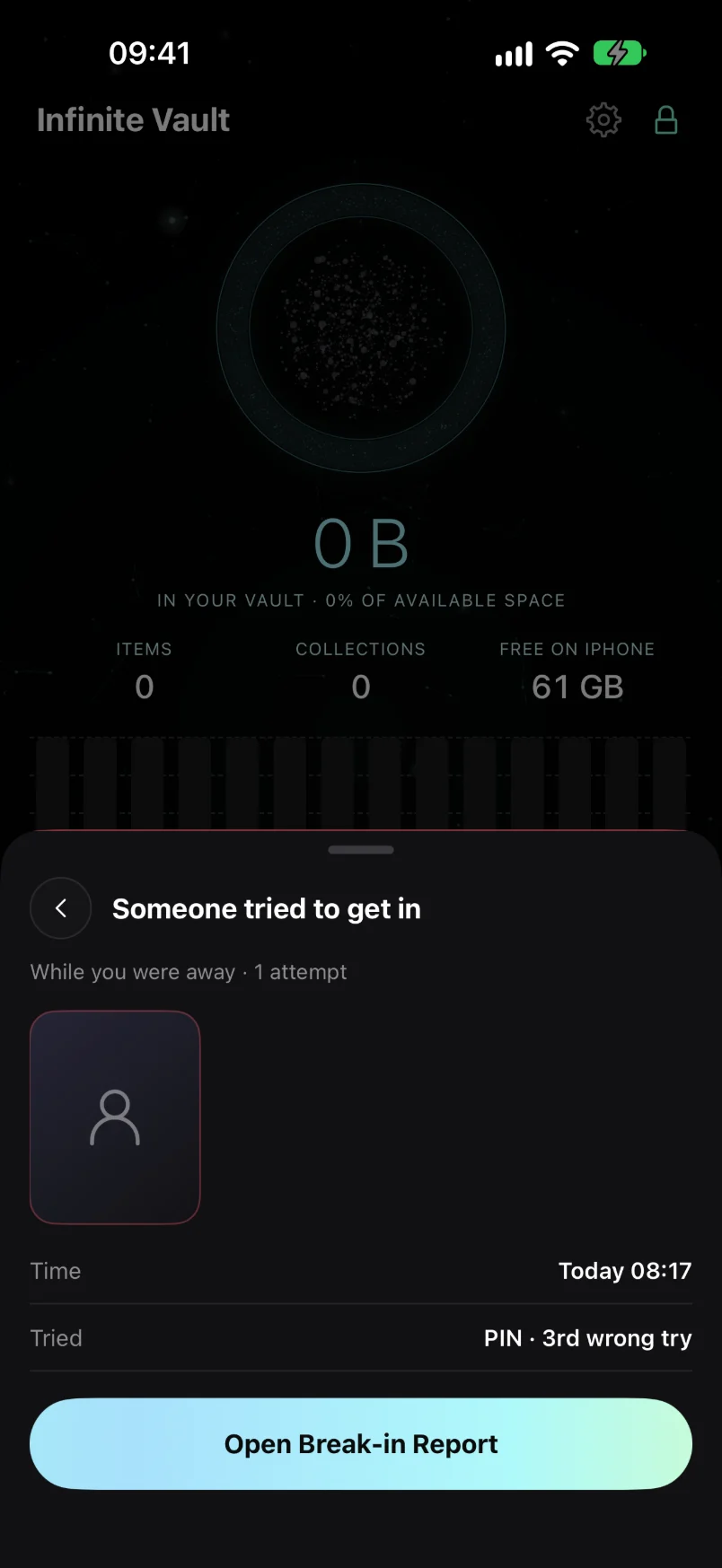
From the 3rd wrong attempt on, every wrong attempt takes a front-camera photo with the time, and iOS shows its green camera dot while it does. After your next unlock the app says “Someone tried to get in”, and the Break-in Report lists each attempt. Saving the location is opt-in and off by default.
Mark places that are safe for you, such as home, with a radius from 50 to 500 metres. At a Safe Place, Face ID alone opens the Vault; anywhere else, your passcode is needed too. Switch it on or off in Settings.
A Decoy Passcode is a second passcode of the same type as your Vault Passcode. It opens a Decoy Vault that looks like a fresh, empty Home, or holds a few ordinary photos you pick, and nothing in it points to the real Vault. No Break-in Photo is taken when it opens. A Backup carries the Decoy Vault too, sealed, so it comes back with a restore.
Switch the icon to one of five designs we made: Original, Calculator, Notes, Clock or Weather. Only the icon changes; the app itself is not a calculator or any other app. iOS shows its own “icon changed” alert, and a settings page teaches you how to hide the app from the Home Screen, after which you open it by name from Search.
iPhone's own backup, whether iCloud Backup or a Finder or Apple Devices backup, leaves the Vault out by default. A setting lets you include it, and it stays encrypted. iOS cannot split iCloud from computer backups, so the setting covers both.
There is no account to create and no server of ours. Your Vault lives on your iPhone, and nothing of ours holds your files. A copy exists only if you make one: an encrypted Backup to your own iCloud or computer, or a Share Vault file you send.
Transfer files from iPhone to PC by USB, which is free, over Wi-Fi from a browser, or with the Desktop App, and back up your Vault to your own iCloud or computer.
USB Export folder Free
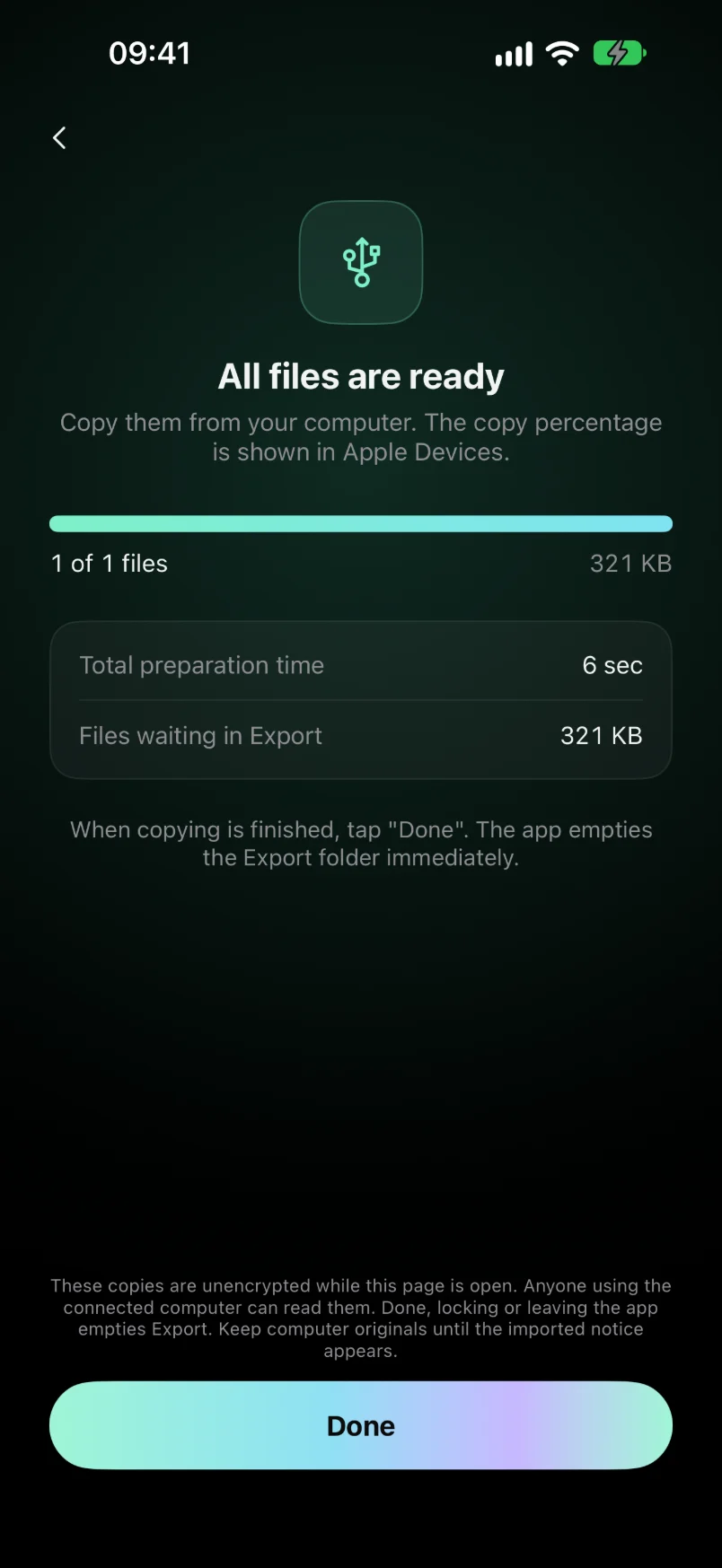
Pick Items, choose Export, then USB cable. The app decrypts just those Items into its Export folder, which your computer sees in Finder on a Mac or in the Apple Devices app on Windows, under Infinite Vault's Files. Nothing to install, and the folder is emptied when you unplug the cable or next open the app.
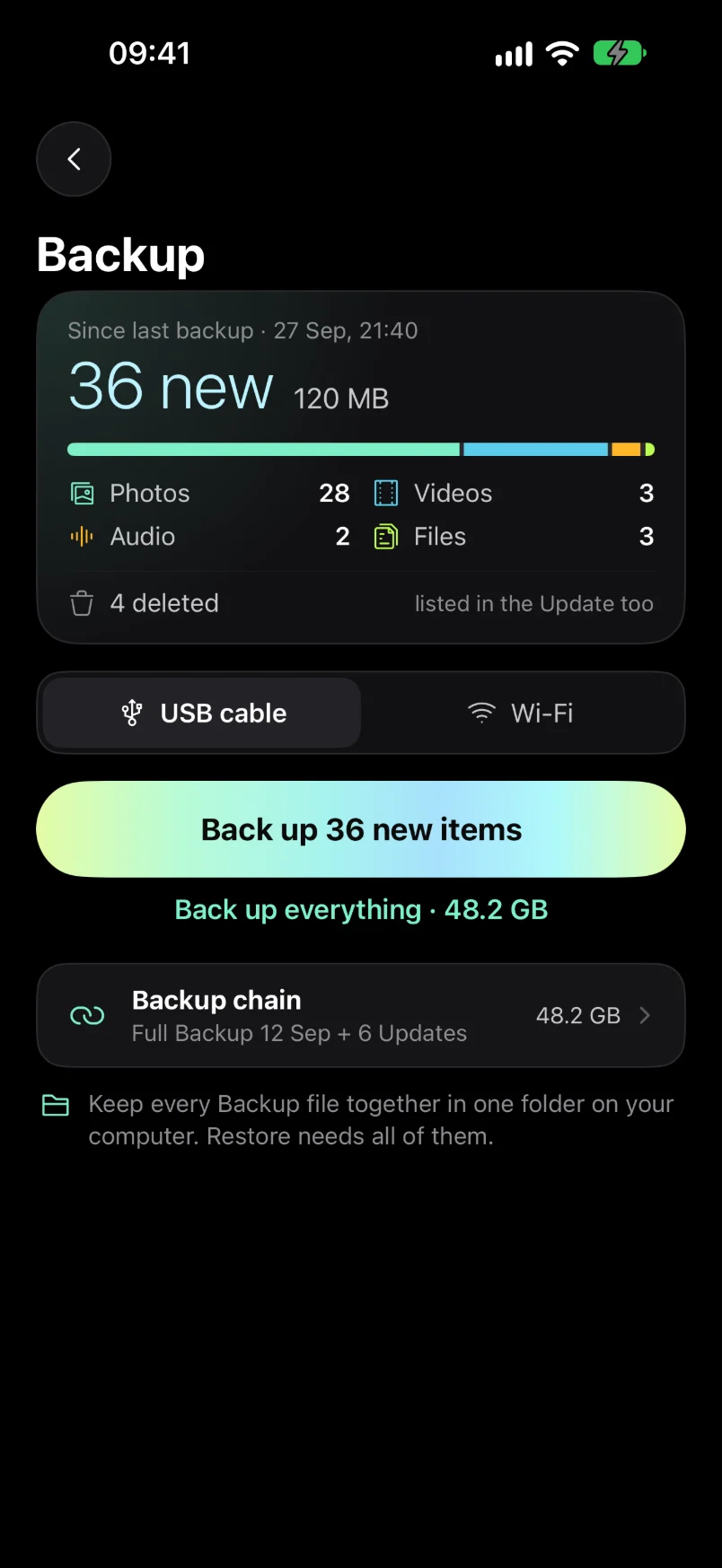
One tap writes the whole Vault as an encrypted Backup file, saved through the Export folder by USB or downloaded in Browser mode over Wi-Fi. The first is a Full Backup; after that the app writes only an Update with what was added or changed, and the Backup page shows what is new. The app cannot see your computer, so moving each new file into your Backup folder is your step.
Drop files into the Export folder from your computer, and the app imports them the next time it opens. They land in a Collection named “From computer”, made when it is first needed.
Your iPhone shows a local address and a code. A browser on a computer on the same Wi-Fi opens the address and asks for the code and your Vault Passcode, and there is nothing to install. A Pattern Vault signs in there with the Seed phrase, and three wrong sign-ins end the session without counting toward your iPhone's wait.
Once signed in, the computer shows your Vault laid out like a desktop photo app. Download single Items, or a selection as one zip, and upload files into a Collection. Files are encrypted on the iPhone before they cross the Wi-Fi and decrypted in the page, so someone on the same network sees nothing readable.
Write the same encrypted Backup file to your own iCloud, using your iCloud storage. It goes one way: iCloud never writes into the Vault, and nothing comes back unless you press Restore. The app keeps your latest chain, and can remember your Seed phrase behind Face ID on this phone.
On a new phone, tap Restore a Backup and choose where it is: iCloud, a computer over USB, or Files. Enter the Seed phrase, because Backups open only with it. Then set a new Vault Passcode. From a computer or Files, the Full Backup and every Update must sit together in one folder.
Before restoring, the app checks the whole chain. If a file is missing, it names that file and lets you look for it, or restore up to the last complete point. Changes made after that point will not come back.
The Desktop App for Mac and Windows copies between a folder on your computer and the Vault, over a USB cable or Wi-Fi. Each subfolder is a Collection, and you tick which ones go to the phone against its free space. Sync only adds: a delete or move on one side never reaches the other. Files on the computer sit in plain folders that anyone at that computer can open.
In the Desktop App, with or without the phone: make, rename and nest Collections, drop files in, and set a name, icon, colour and lock. Dropped files are copied, and the originals stay where they are. The next Sync carries it all to the Vault.
The Scan tab compares the phone and the Computer folder, and counts for each Collection what would go each way, what is the same and what is only on one side. A Scan copies and changes nothing.
Delete duplicate photos in your Vault without the risk: a Vault Trash that keeps deletions for 30 days, a duplicate finder that only suggests, and a ring that shows what the Vault uses.
Vault Trash Free
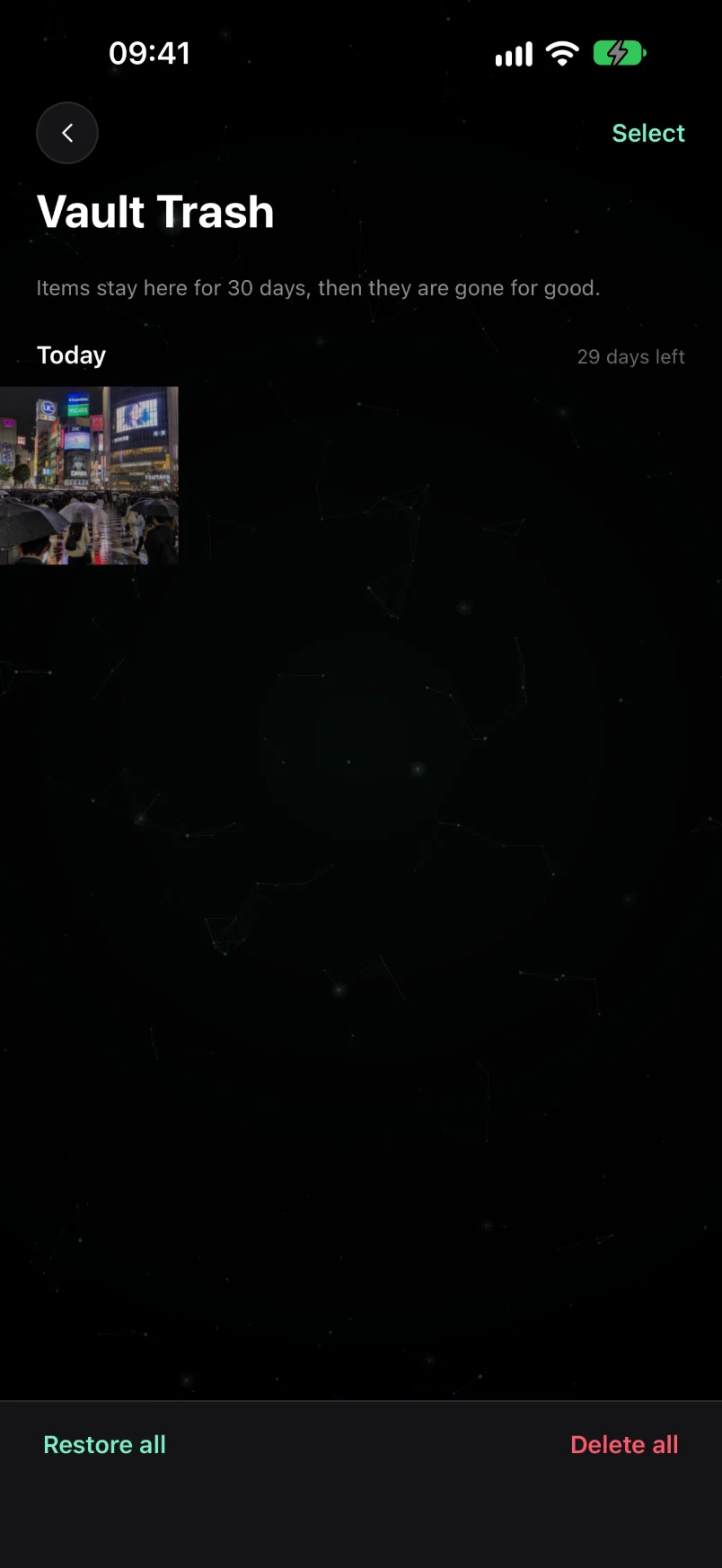
Deleted Items wait 30 days in Vault Trash, grouped by the day you deleted them, with the days left shown. Restore them all, or select some to restore or delete for good. It is separate from the Recently Deleted album in Photos.
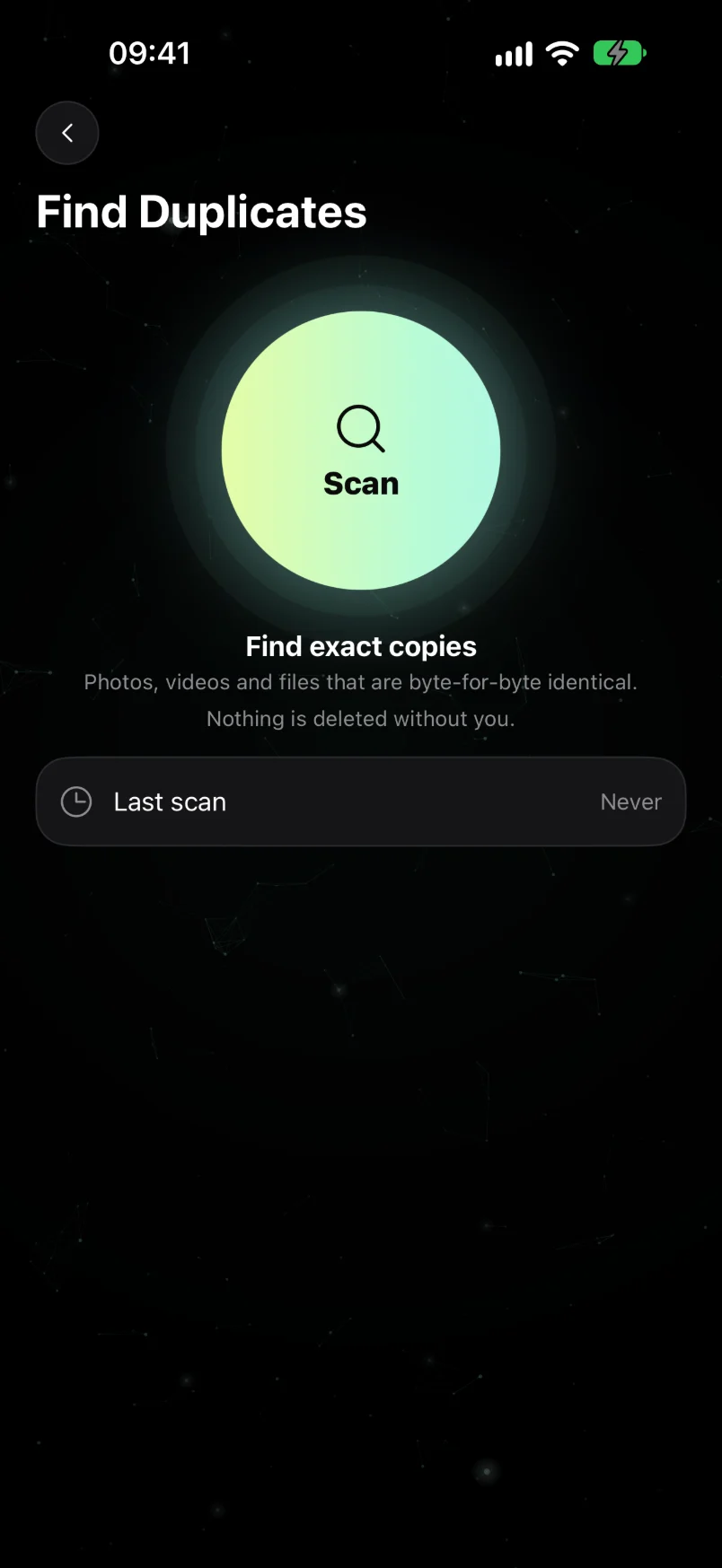
Find exact copies. Photos, videos and other files are offered only when a check of their contents shows they are byte-identical. It is always a suggestion: you review each group, and the Items you drop go to Vault Trash.
Home shows a ring of how much space the Vault uses, with your iPhone's free space as a separate number. Colours mark Photos, Videos, Audio and Files, and a 14-day chart shows what you imported each day.
Plans and languages: a free photo vault app to start with
Start with a free photo vault app. The Free plan keeps every feature that is not tagged Ultima.
Free and Ultima All plans
Free costs nothing and holds up to 100 photos, 10 videos and 4 Collections. Ultima has no limits and adds every feature tagged Ultima: ฿79 a week, charged now; ฿699 a year with 14 days free; or ฿1,490 once. Weekly and yearly renew until cancelled. There is no account to create.
The yearly plan starts with 14 days free, then ฿699 a year, renewing until cancelled. It runs through the App Store, so you cancel it there. The weekly plan is charged from the first day.
When a paid plan ends, nothing in the Vault is deleted or locked away. Items and Collections over a limit stay open and you just cannot add more, while the Ultima features switch off. USB transfer stays available on Free.
The app speaks Thai and English. On first launch it follows your phone's language, or English if the phone uses neither, and you can change it in Settings. More languages will come later.