
How to hide apps on iPhone: change the icon or remove it (Ultima)
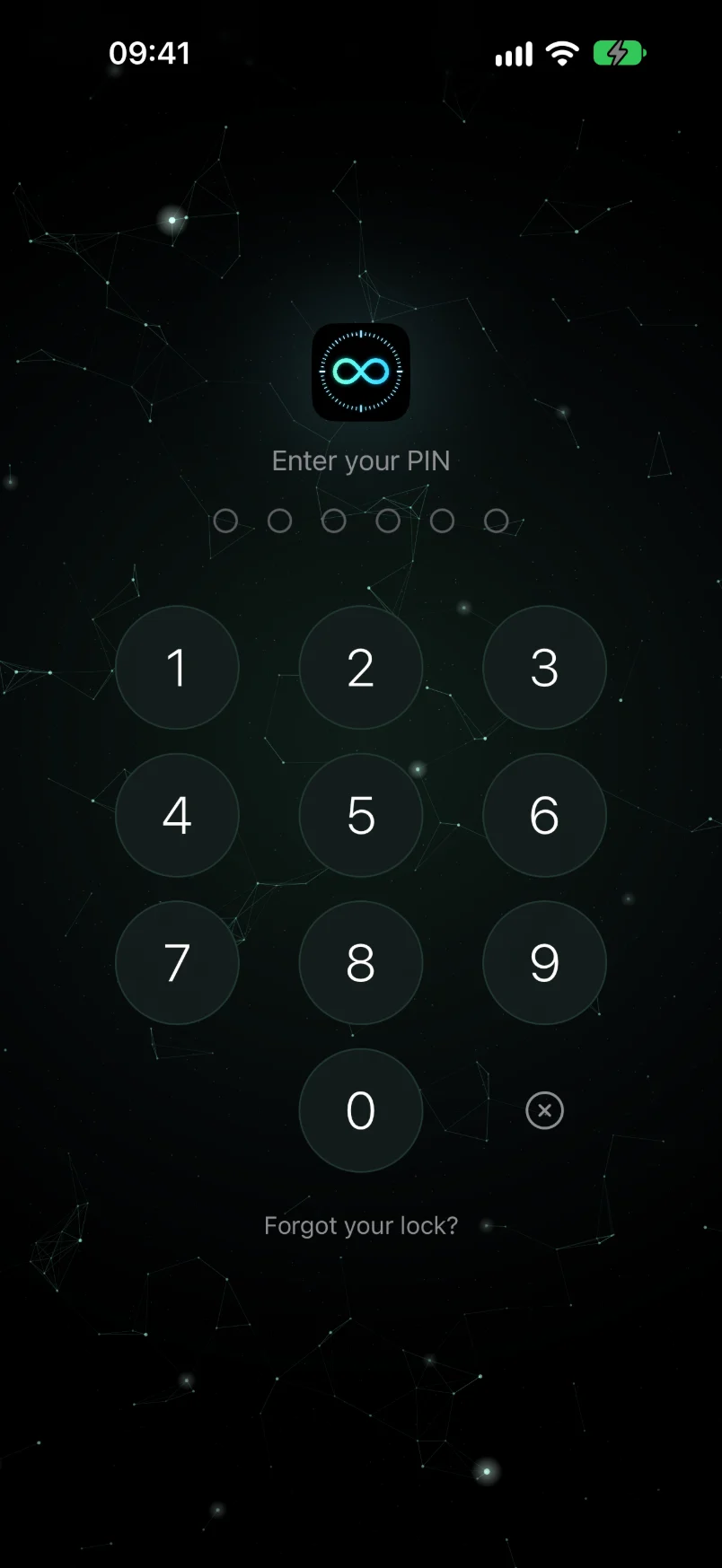
Wondering how to hide apps on iPhone so a quick look at your Home Screen shows nothing? Infinite Vault can change its icon to Calculator, Notes, Clock or Weather, and you can remove the icon from your Home Screen. If you were hoping for a fake calculator app or an app hider, know this first: only the icon changes. Tap the Calculator icon and you reach the Vault’s lock screen, not a working calculator.
- You need
- Infinite Vault, unlocked, on your iPhone.
- Plan
- Ultima.
- What changes
- Only the picture of the icon. The Vault, its lock and its contents stay as they are.
On this page
How to change the Infinite Vault app icon and hide it from the Home Screen
-
1. Open Settings, then App Icon
Tap the gear on Home, then App Icon under Appearance. The row shows a thumbnail of the icon you use now, and the page carries an ULTIMA tag next to its title.
-
2. Pick a disguise
Choose Original, Calculator, Notes, Clock or Weather. Each row has a subtitle such as “Looks like a calculator”, and a mint check marks the icon in use. All five are icons we drew ourselves, not copies of Apple’s.
-
3. Accept the message from iOS
iOS shows its own alert: “You have changed the icon for Infinite Vault”. The app cannot switch this alert off. Tap OK and the icon on your Home Screen changes.
-
4. Hide it completely, if you want to
Below the list, the Hide it completely card shows what to do in iOS: touch and hold the icon, tap Remove App, then choose Remove from Home Screen. The app cannot do this for you, so you do it yourself. The icon leaves your Home Screen, and you can open the app again from Search.
-
5. Open the app when you need it
Type Infinite Vault in Search, or tap the disguise icon if you left it on the Home Screen. You always land on the Vault’s lock screen first, never on a calculator, notepad, clock or forecast.
Keep in mind
Features in this guide
If something goes wrong
I removed the icon and now I cannot find the app.
Search for Infinite Vault by name. The app is still on your iPhone; only the icon left the Home Screen.
Disguise icon in FeaturesiOS showed a message when I changed the icon.
That is normal. iOS shows its own “icon changed” alert, and Infinite Vault cannot switch it off.
Disguise icon in FeaturesI cannot change the icon.
The App Icon page is an Ultima feature. When a plan ends the Ultima features switch off, and nothing in your Vault is deleted.
See the Ultima planCan someone still find Infinite Vault on my phone?
Yes, by searching its name or by looking in iPhone Settings › Storage. The lock screen still stops them opening it. For a second line of defence, set up a Decoy Vault.
Set up a Decoy VaultQuestions
Can I hide the app icon?
With Ultima you can change the icon to one of five (Original, Calculator, Notes, Clock or Weather), and you can remove the icon from your Home Screen yourself. iOS shows its own icon-changed alert, which the app cannot switch off, and the app cannot remove itself from the Home Screen. Only the icon changes: it is not a working calculator.
I cannot find the app on my Home Screen.
If you removed the icon from your Home Screen, the app is still on your iPhone and you can find it by name in Search. If you switched to a disguise icon, look for the Calculator, Notes, Clock or Weather icon instead: the app is still named Infinite Vault.
What is a Decoy Vault? Is it in my Backup?
A Decoy Vault is a harmless-looking Vault that opens with a second passcode, the Decoy Passcode. It is an Ultima feature. A Backup carries it, sealed, so it comes back with a restore.