
Photo vault for iPhone: set up Infinite Vault for the first time
Setting up a photo vault for iPhone takes a few short steps. A short guide shows what the app does, you pick a plan or skip it, choose how the Vault opens, write down your Seed phrase for the day you forget a code, and decide about Face ID. When you finish, your Vault is locked and ready.
- You need
- An iPhone with iOS 18 or later and Infinite Vault installed.
- Plan
- Free. Ultima is optional, and you can skip it on the plan page.
- Have ready
- Paper and a pen for your Seed phrase.
On this page
Set up a photo vault for iPhone, step by step
-
1. Read the guide, or skip it
Open Infinite Vault. A short guide shows what the app does. Tap Continue through it, or tap Skip at any time. To bring an earlier Vault back instead, tap Restore a Backup on the first page.
-
2. Choose a plan, or skip it
The plan page compares Free and Ultima. Pick Weekly, Yearly or Lifetime, or tap Skip to stay on Free. The line under the button says how that plan renews. Tap Continue on the next page.
-
3. Choose how to lock
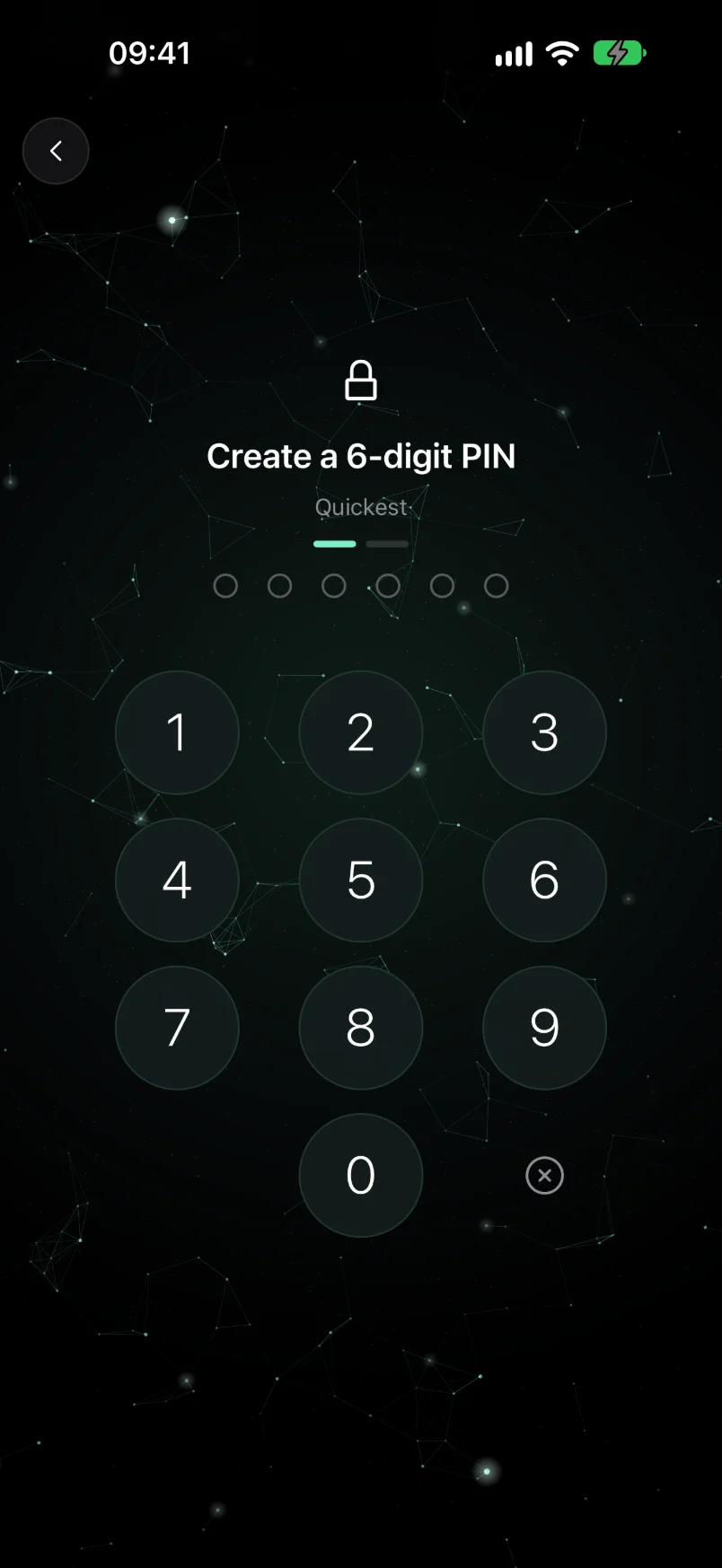
Pick how the Vault will open: 6-digit PIN, Password (letters, numbers and symbols) or Pattern, a line you draw across a grid of 25 dots. This is your Vault Passcode, and it is separate from your iPhone's passcode. Tap Continue. You can change it later in Settings.
-
4. Set it and confirm it
Enter your PIN, type your Password, or draw your Pattern, then do it again to confirm. For a Pattern, drag from dot to touching dot, diagonals included, through 6 to 8 dots, each dot once. If the two entries do not match, the app asks you to start again.
-
5. Write down your Seed phrase
The app shows 9 words. Write them down in order and keep them somewhere safe, then type 3 of them to confirm. If you forget both your Vault Passcode and your Seed phrase, nobody can open the Vault, not even us. There is no server holding a copy.
-
6. Decide about Face ID
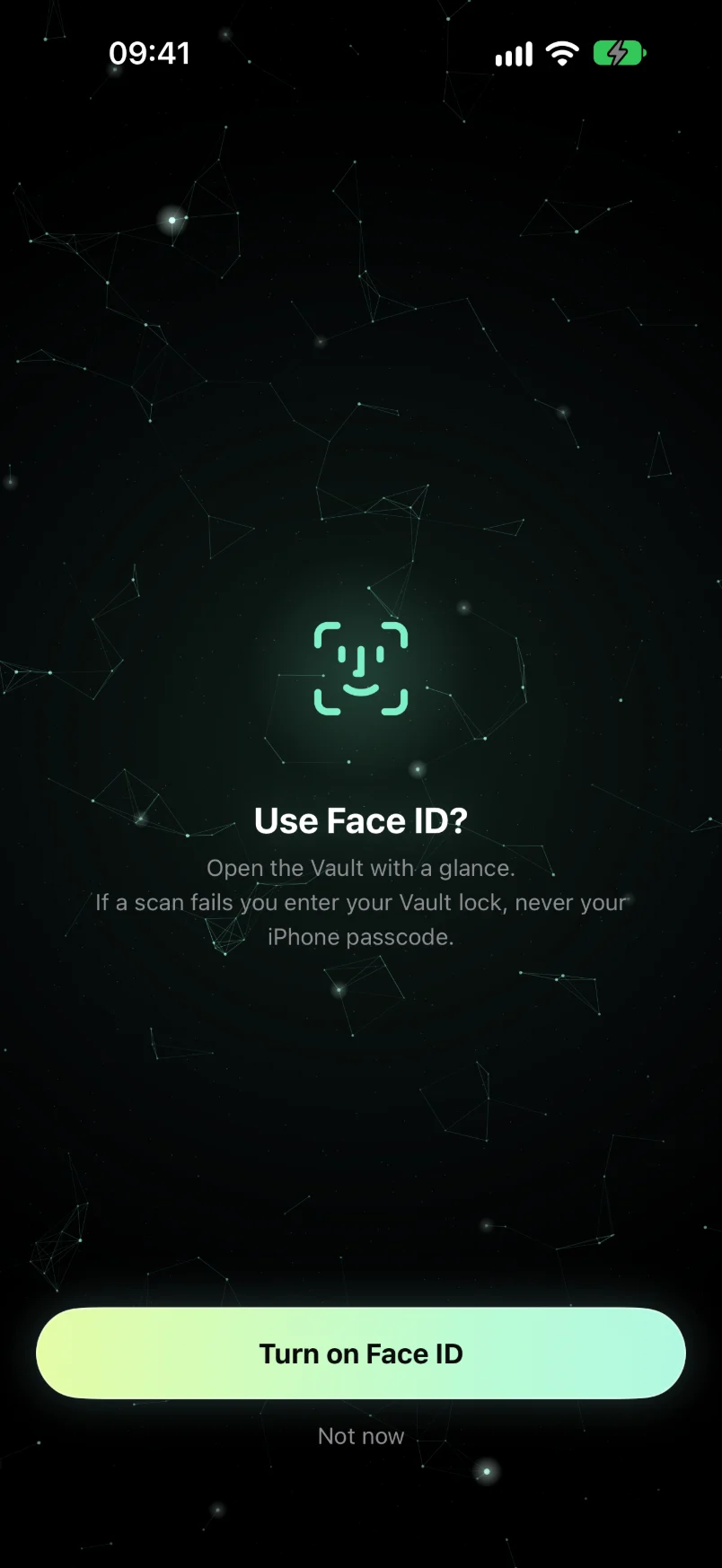
The app asks Use Face ID? Tap Turn on Face ID to open the Vault with a glance, or tap Not now. If a scan fails, the app asks for your Vault Passcode, never your iPhone passcode. You can switch it on or off later.
-
7. Start with an empty Home
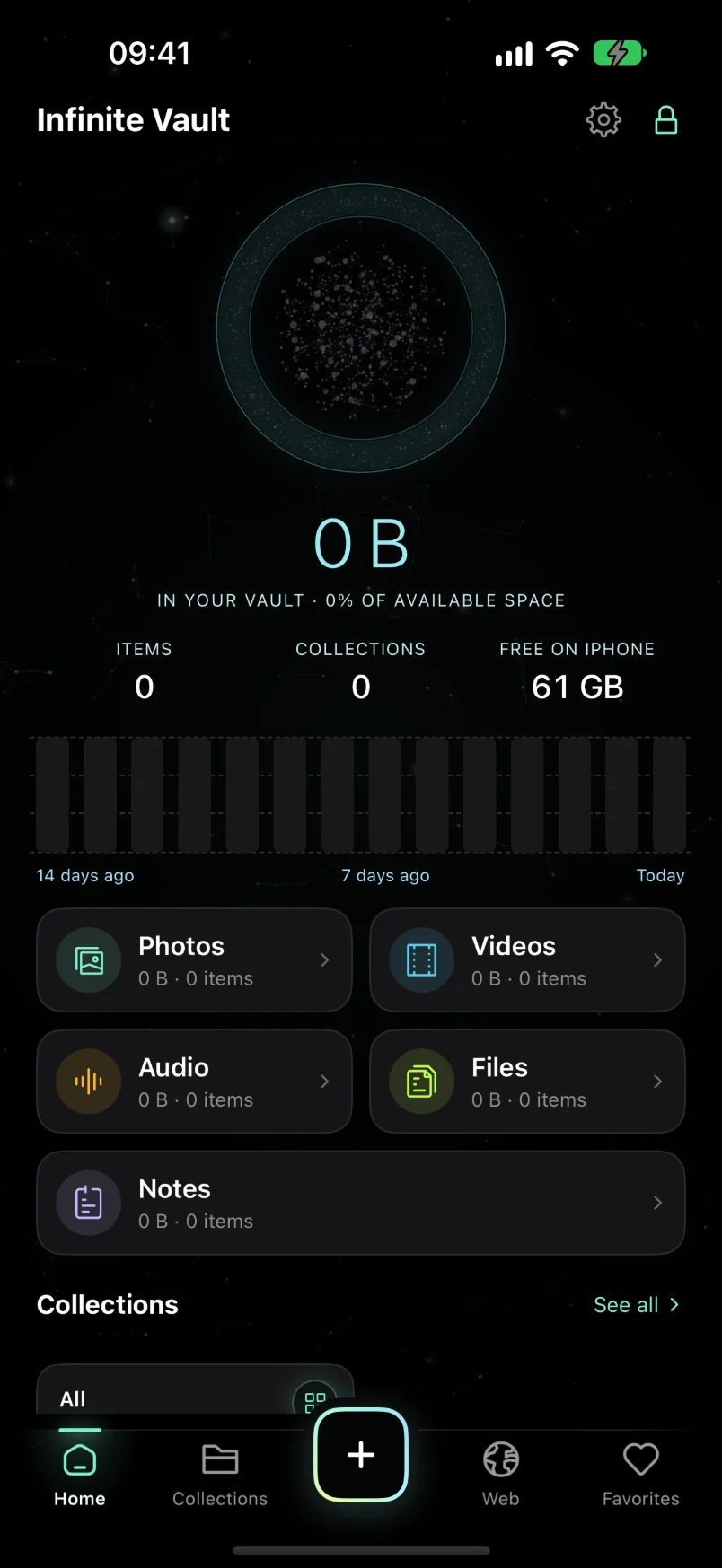
You land on Home with a storage ring at 0 B and a New Collection card. Your photo library is not touched yet: the app asks for access only at your first Import from Photos. Tap + to Import, or the New card to make a Collection.
Keep in mind
Features in this guide
If something goes wrong
The two entries do not match.
Start again from the first entry. For a Pattern, the app says so and lets you draw again from the start. A Pattern needs 6 to 8 dots.
The Seed phrase is refused.
The 3 words must match the words shown, in the right places. Tap See the words again and check them.
I tapped Not now on Face ID.
Nothing is lost. You can switch Face ID unlock on later in Settings, under Passcode.
Common questions
Do I need an account, and does it work offline?
You do not need an account. There is nothing to sign up for and no server, and everything in your Vault stays on your iPhone. Only the Web tab and Browser mode talk to a network by design, and Importing iCloud photos needs a connection to download the originals.
I forgot my Seed phrase.
If you still know your Vault Passcode, make a new Seed phrase in Settings, under Passcode. If you have forgotten both, nobody can open the Vault, not even us, because there is no server holding a copy.
Which languages?
Thai and English. The first time you open the app it follows your iPhone's language, and uses English when it is neither. You can change it in Settings, under Language. More languages will come later.
Related guides
- How to hide photos on iPhone (and lock them properly)Your first Import, step by step.
- How to lock photos on iPhone with Face ID, a PIN or a PatternMore about the Pattern, Face ID and the wait after wrong tries.
- Photo vault recovery: forgot your passcodeWhat to do when a code slips your mind.
- Secret folder on iPhone: CollectionsMake your first Collection and give it an icon and a colour.