
Secret folder on iPhone: organise with Collections, icons, colours and their own PIN
Want a secret folder on iPhone? In Infinite Vault it is called a Collection: a named group of Items that can hold photos, videos, audio and documents together. You give it an icon and a colour, you can lock it with its own PIN, and you can nest Collections inside each other.
- You need
- Infinite Vault, set up.
- Plan
- Free includes up to 4 Collections. Ultima has no limit.
- You can set
- A name, an icon from 44 to choose from, one of 14 colours, and an optional PIN.
On this page
Make a secret folder: create a Collection in five steps
-
1. Tap New on Home
On Home, tap the New card in the Collections row. You can also tap + on the Collections page, or choose New Collection from the + sheet.
-
2. Name it and choose an icon and a colour
A sheet slides up. Type a name, and a badge appears in front of it as you type. Under Icon, pick one of 44 icons. Under Colour, swipe through 14 colours and tap one. The colour tints the name field, the badge and the selected icon.
-
3. Choose whether to lock it, then tap Create
Switch on Lock this Collection if you want it to have its own PIN, on top of your Vault Passcode. The app asks you to set the PIN and enter it again. Tap Create. The new card slides into the row on Home and glows once in its colour. A locked Collection shows Locked on its card and asks for its PIN whenever you open it.
-
4. Move Items in and between Collections
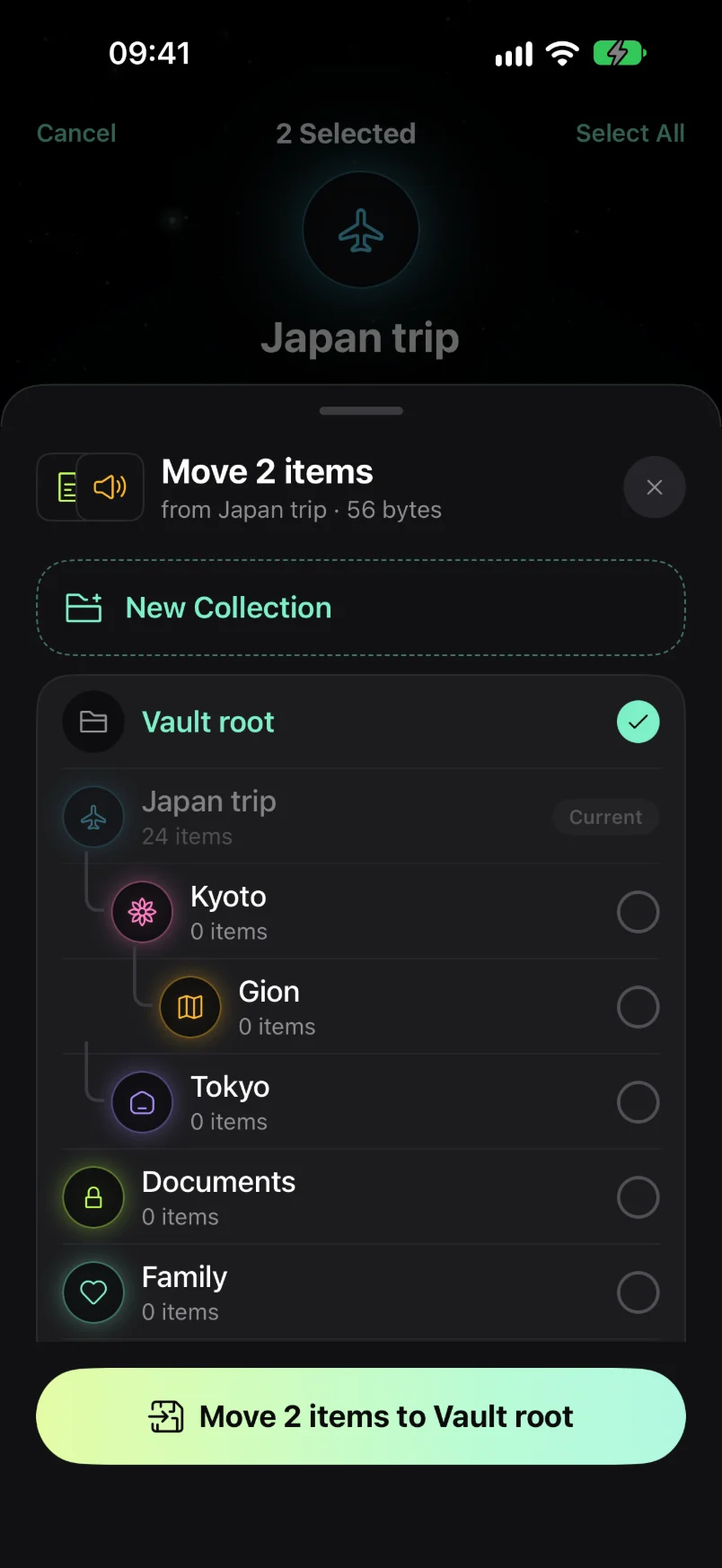
Open a Collection and tap + Import to bring Items in. To move Items you already have, tap Select, pick them and tap Move. A sheet lists your Collections as a tree, with Sub Collections indented. The button names the count and the place, for example Move 5 items to Kyoto. A locked Collection asks for its PIN first.
-
5. Make Sub Collections and manage the Collection
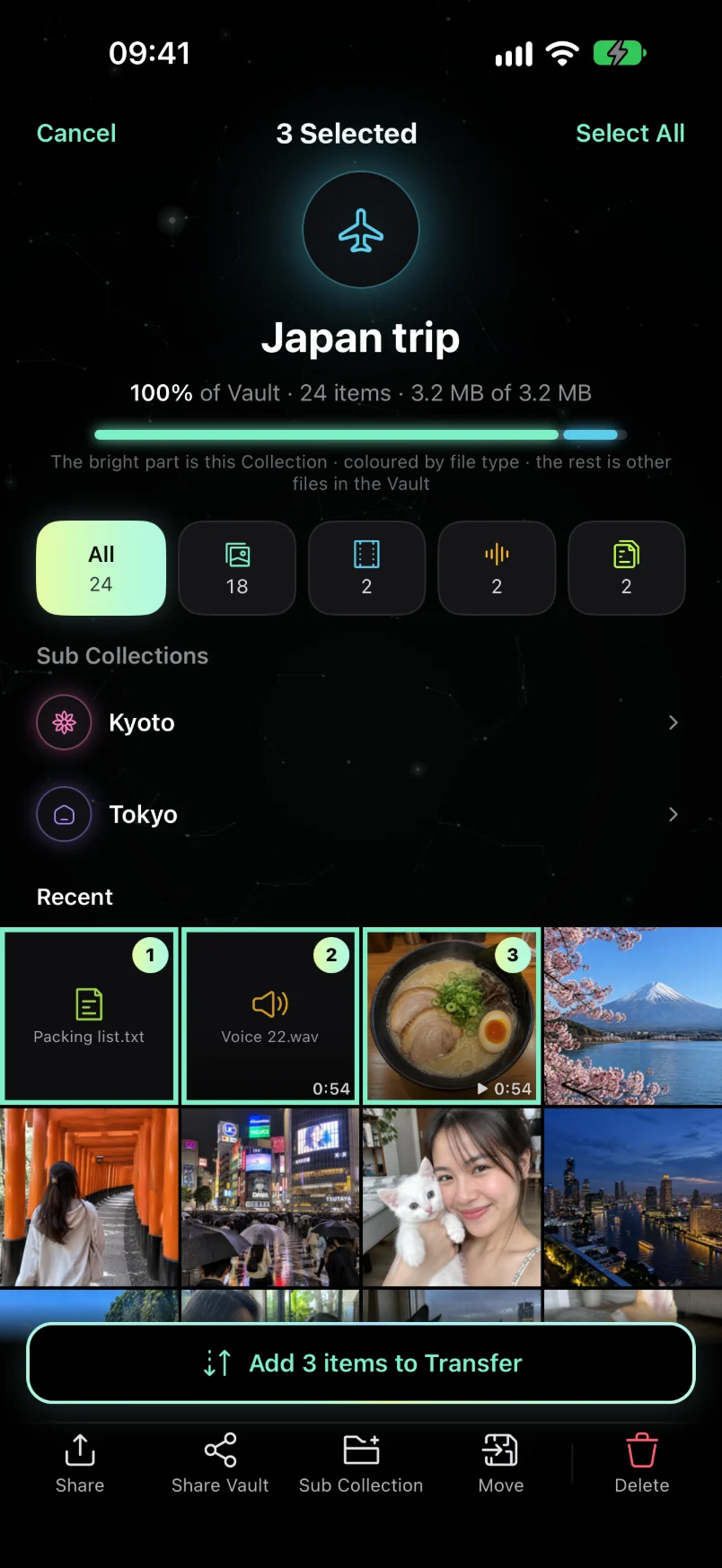
Pick Items with Select, then tap the Sub Collection button to make a new Collection inside the current one, with those Items moved in. Collections can be nested as deep as you like. Tap the More button (three dots) on a Collection page for Rename, Icon & colour, Lock with its own PIN, New Sub Collection and Move into another Collection.
Keep in mind
Features in this guide
If something goes wrong
The New card says Go Ultima.
You have made every Collection your plan allows. Nothing is deleted or locked, and all your Collections still open. You can keep using them, or upgrade for more room.
I forgot a Collection's PIN.
Reset it with your Seed phrase. There is no other way.
Items are missing from a Category or from search.
They are probably in a Collection that has its own PIN and is locked. A locked Collection stays out of every Category and out of search until you open it with its PIN.
Common questions
Which files can I keep?
Any type. The Vault holds Items of any kind. It opens photos, videos, audio, PDFs and Office documents inside the app, and PDFs and Office documents use iOS Quick Look.
What does each plan include and cost?
Free holds up to 100 photos, 10 videos and 4 Collections. Ultima has no limits and adds the features tagged Ultima. It costs ฿79 a week, ฿699 a year with 14 days free, or ฿1,490 once.
What happens when my plan ends?
Weekly and yearly are App Store subscriptions. When a plan ends, the app drops to Free. Nothing in your Vault is deleted: Items and Collections over a limit stay open, you just cannot add more, and the Ultima features switch off.
Related guides
- How to hide videos on iPhone with ImportChoose which Collection your Items go into.
- Photo vault recovery: forgot your passcodeThe Seed phrase also resets a Collection PIN.
- Collection passcodeHow a Collection PIN encrypts what is inside.
- How to hide photos on iPhone (and lock them properly)Put your first photos into a Collection.