
How to hide videos on iPhone: Import them into the Vault
This is how to hide videos on iPhone with Infinite Vault. Import moves your videos, photos and files into the Vault and removes the originals from Photos in the same step, so nothing is left behind in your library.
- You need
- Infinite Vault, set up, with the Vault unlocked.
- Plan
- Free. Import works the same on every plan.
- Works with
- Photos and videos from your photo library, and any file from the Files app.
On this page
How to hide videos on iPhone: the Import steps
-
1. Tap + on Home
On Home, tap the round + in the middle of the bottom bar. The sheet offers From Photos for photos and videos, From Files for any kind of file, and Private camera. To hide videos, choose From Photos.
-
2. Pick your videos and set the options
The first Import from Photos asks for access to your photo library, once. In the picker, tap the videos you want, or open Albums to browse by album. Each pick gets a numbered badge. Below the grid, Delete originals after import is on by default: keep it on to remove the videos from Photos. Into shows where they will go. Tap it to choose a Collection.
-
3. Tap Import, then confirm the delete
Tap Import N items. A ring shows the progress, and the queue shows which Item is done, which is downloading its full original from iCloud and which is waiting. iOS asks you once to confirm the delete. The originals are removed only after every Item is checked inside the Vault. When it finishes you see how many Items came in and a note about your originals. The note appears once.
-
4. Find your videos in the Vault
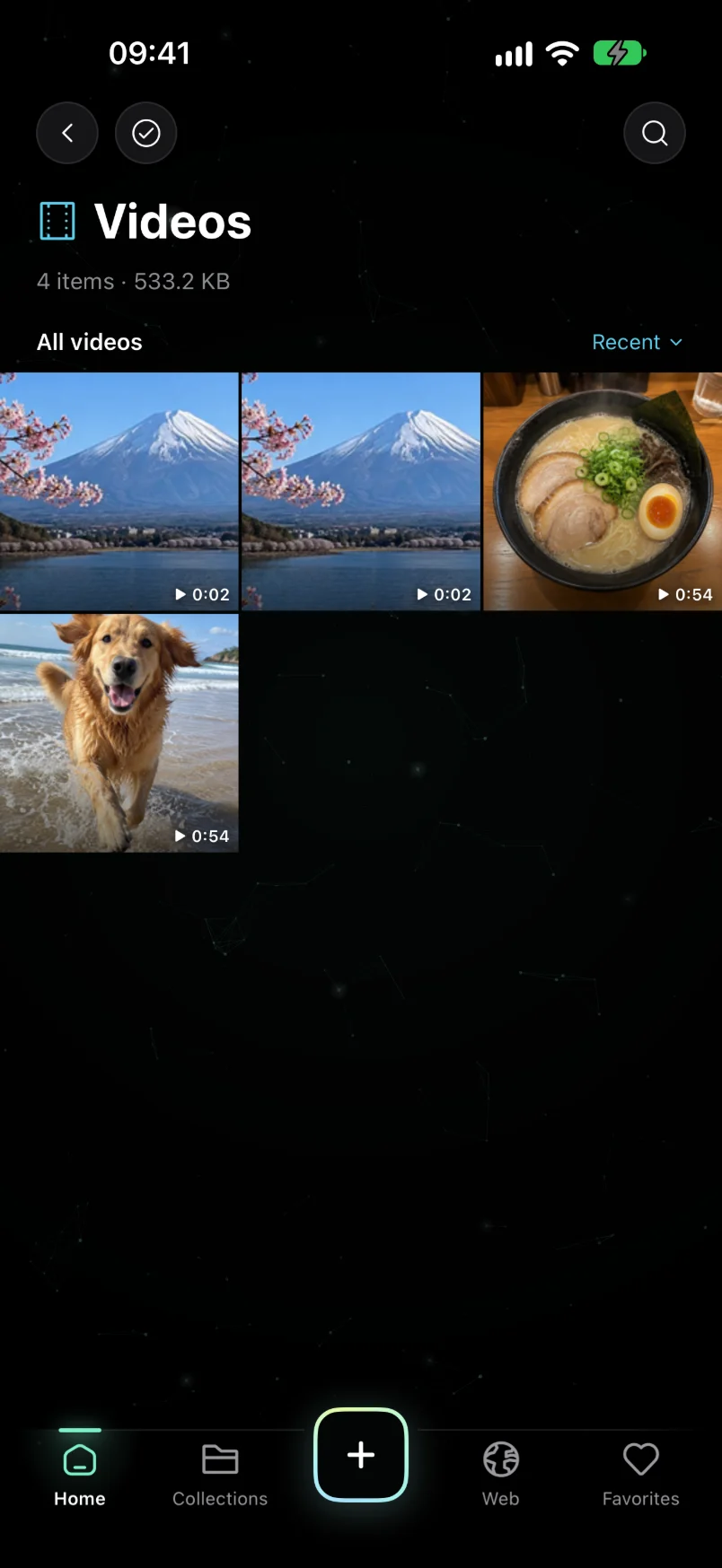
On Home, tap Videos under the storage ring to see every video from every Collection, or open the Collection you chose. Tap a video to play it inside the app.
-
5. Hide documents and other files too
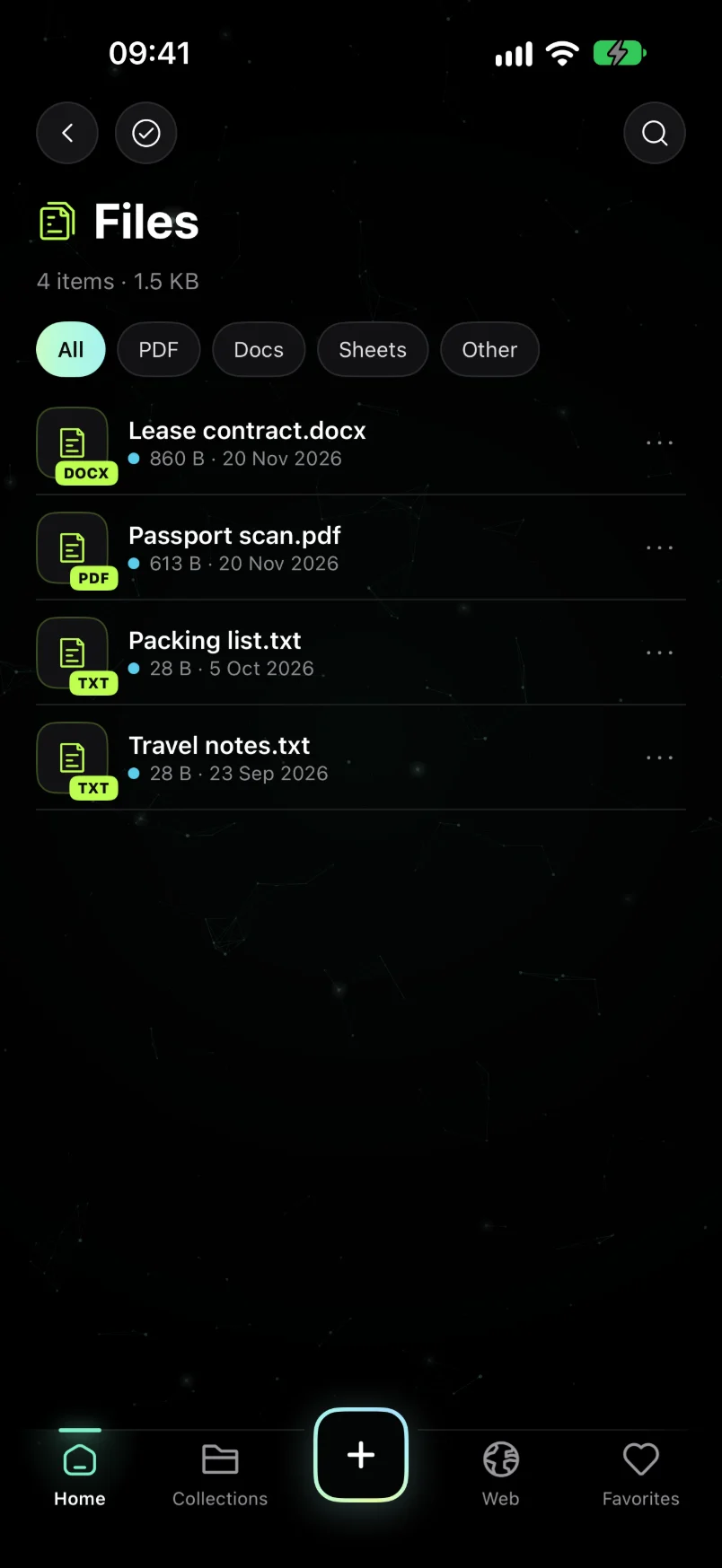
Tap + and choose From Files. Any kind of file works, and you can pick many at once. Photos, videos, audio, PDFs and Office documents all open inside the app, and PDFs and Office documents use iOS Quick Look.
Keep in mind
Features in this guide
If something goes wrong
I tapped Don't Allow.
Your Items are in the Vault, and the originals stayed in Photos. Check the Vault first, then delete the originals in Photos yourself.
The app says some Items failed.
Anything that failed stays in Photos, and the app tells you how many. An original is never deleted before its Item is checked inside the Vault.
Importing iCloud videos takes a while.
Each full original is downloaded from iCloud before it is saved and checked, so a library kept in iCloud takes longer than one stored on the phone. The queue shows what is downloading and what is waiting.
Common questions
Does Import delete my originals, and why does iOS ask?
Yes. Import moves your Items into the Vault and removes the originals in the same step. iOS always asks you to confirm a delete, and an app cannot skip that question, so you see it once. The originals are removed only after every Item is checked inside the Vault. They wait in Photos' Recently Deleted for 30 days.
Which files can I keep?
Any type. The Vault holds Items of any kind. It opens photos, videos, audio, PDFs and Office documents inside the app, and PDFs and Office documents use iOS Quick Look.
How do I get files back out?
Open an Item and tap Share to use the iPhone share sheet: AirDrop, other apps, Save Image or Save Video to Photos, and Save to Files. You can also export Items back to Photos or to the Files app, including an external drive plugged into your iPhone.
Related guides
- How to hide photos on iPhone (and lock them properly)The overview: what Import does and how to lock what you hid.
- Secret folder on iPhone: CollectionsDecide where Imported Items go and lock a Collection.
- Use the private camera: shots never touch PhotosTake photos straight into the Vault, with no Import needed.
- Vault Trash and Duplicate Detection: free space safelyClear copies out of the Vault without losing anything by accident.