
How to hide photos on iPhone (and lock them properly)
This guide shows how to hide photos on iPhone so that someone who picks up your phone cannot open them. You move the photos into a Vault, which opens only with its own passcode. Infinite Vault does it with Import: you choose the photos, they go into the Vault, and the originals leave Photos in the same step.
- You need
- An iPhone with iOS 18 or later and Infinite Vault, already set up.
- Plan
- Free. Importing photos, videos and files is on every plan.
- What happens
- Your photos move into the Vault. The originals are removed from Photos, and iOS asks you once to confirm.
On this page
Hidden album or Vault: what is the difference?
The Hidden album is a feature of Apple's Photos app. What it does and does not protect is for Apple to describe, so check Apple's own support pages for how it works on your version of iOS. This guide only describes Infinite Vault.
Here is what Infinite Vault does when you hide photos with it:
- Import moves the photos into the Vault and removes the originals from Photos in the same step.
- The Vault opens with its own Vault Passcode: a PIN, a Password or a Pattern. It is separate from your iPhone's passcode.
- The Vault locks the moment the app leaves the screen, and the app-switcher preview is hidden.
- Photos are kept byte for byte, with their dates, location and Live Photos, so exporting one back gives you the same file.
- There is no account and no server of ours. Your iPhone's own iCloud or computer backup leaves the Vault out unless you choose otherwise.
How to hide photos on iPhone with Import
-
1. Open Infinite Vault and unlock it
Open the app and unlock it with your Vault Passcode, or with Face ID if you turned it on. If you have not set the Vault up yet, start with the setup guide.
-
2. Tap + on Home
On Home, tap the round + in the middle of the bottom bar. A sheet opens with From Photos, From Files and Private camera. Choose From Photos.
-
3. Pick the photos and check two settings
The first time you Import from Photos, the app asks for access to your photo library. It asks only then. Tap the photos you want to hide, or open Albums to browse by album. Each photo you pick gets a numbered badge. Under the grid, leave Delete originals after import switched on. Into shows where the photos will go: tap it to choose a Collection.
-
4. Tap Import, then confirm the delete
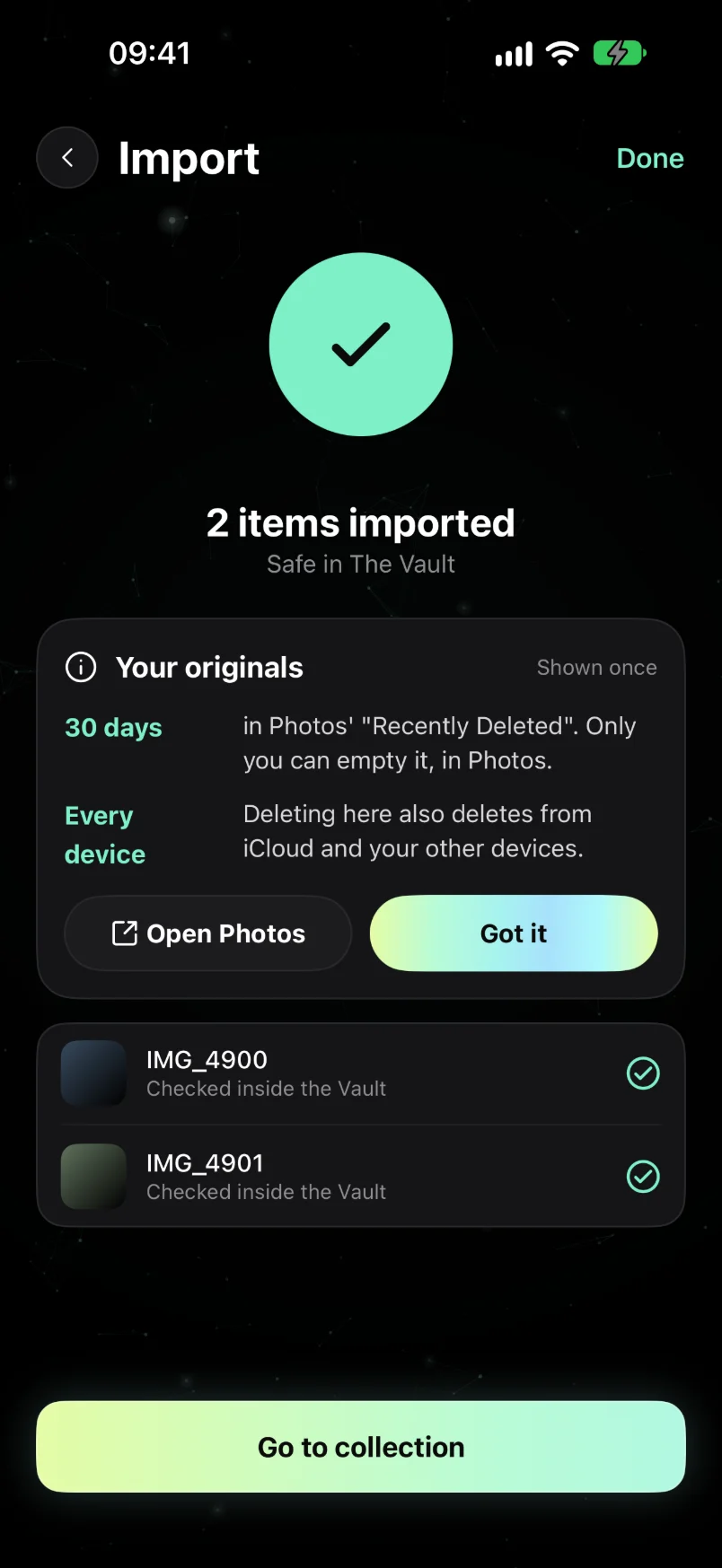
Tap Import N items, where N is how many you picked. A ring shows the progress. A photo kept in iCloud is downloaded in full first, saved into the Vault and checked. iOS asks you once to confirm the delete, and the originals are removed only after every Item is checked inside the Vault. Tap Delete. If you tap Don't Allow, the photos stay in the Vault and the originals stay in Photos. When it finishes, the app shows how many Items came in and a note about your originals. The note appears once.
-
5. Check the photos in the Vault
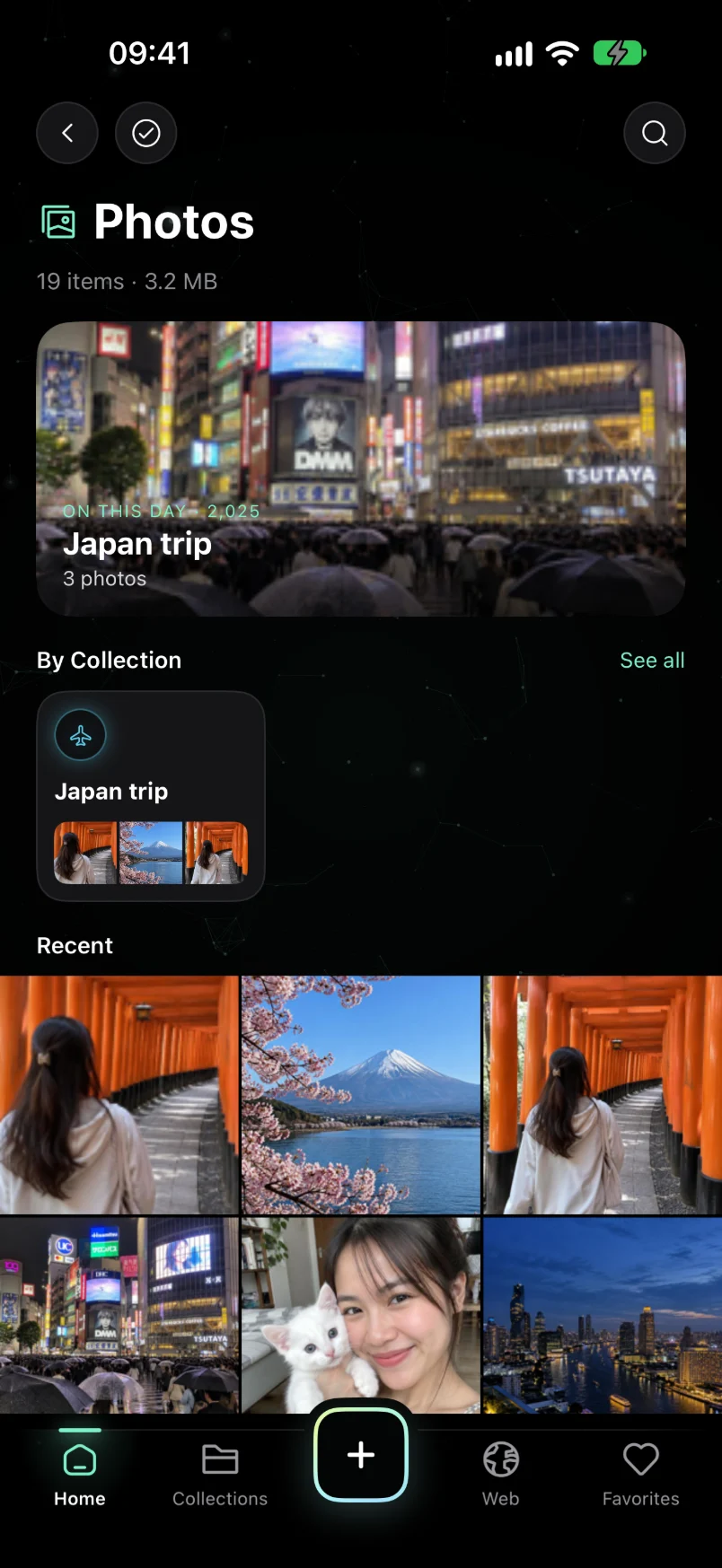
On Home, tap Photos under the storage ring to see every photo from every Collection, or open the Collection you chose. Tap a photo to view it inside the app. If a Collection has its own PIN, its Items stay out of Photos until you unlock it.
-
6. Hide files from the Files app the same way
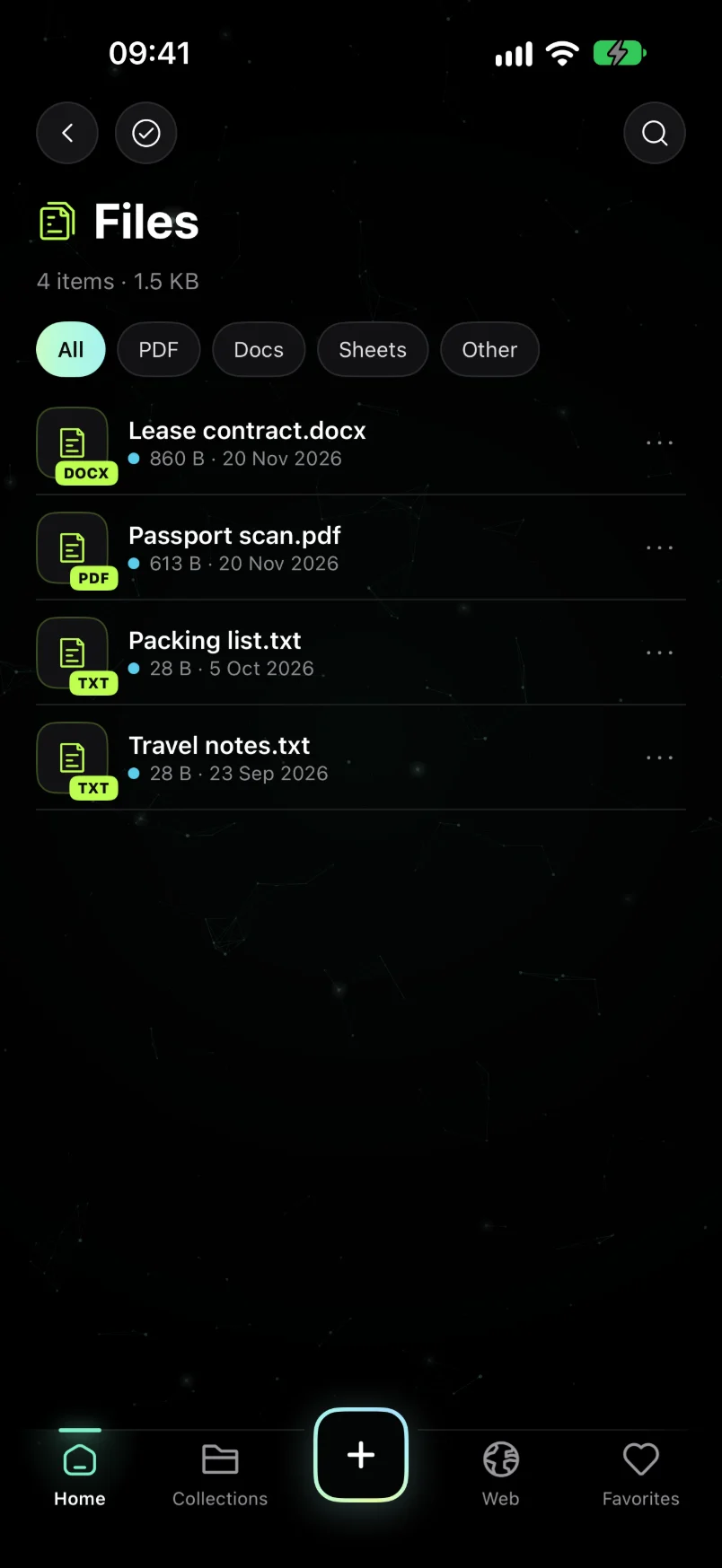
Photos are not the only thing you can hide. Tap + again, choose From Files and pick the files. Any kind of file works, and you can pick many at once. As with photos, the files move into the Vault and the originals are removed.
Keep in mind
Features in this guide
If something goes wrong
My photos are still in the Photos app.
There are three common reasons. You tapped Don't Allow on the iOS delete question, so the photos are in the Vault but the originals stayed. Delete originals after import was switched off. Or an Item failed to import: anything that failed stays in Photos, and the app tells you how many. Photos you did delete also wait in Recently Deleted for 30 days.
I cannot find my photos in the Vault.
Open the Collection you chose under Into. Photos on Home shows every photo from every Collection. Items in a Collection that has its own PIN stay out of Photos until you unlock that Collection.
The app says some photos did not import.
Anything that failed stays untouched in Photos, and the app tells you how many. Run the Import again for those photos.
Common questions
Does Import delete my originals, and why does iOS ask?
Yes. Import moves your Items into the Vault and removes the originals in the same step. iOS always asks you to confirm a delete, and an app cannot skip that question, so you see it once. The originals are removed only after every Item is checked inside the Vault. They wait in Photos' Recently Deleted for 30 days.
What about iCloud photos?
The app downloads the full original from iCloud first, saves it into the Vault and checks that it is complete. Only then is the original deleted. Anything that failed stays in Photos, and you are told how many. Deleting on this iPhone also deletes from iCloud and from every other device.
Are my files changed or compressed?
No. Original files are kept byte for byte, with their metadata: dates, location and Live Photos. Exporting back gives you the same file.
Does the phone's own iCloud backup include the Vault?
Not by default. iCloud Backup and a Finder or Apple Devices backup of your iPhone leave the Vault out. A setting lets you include it, and it stays encrypted.
Related guides
- Photo vault for iPhone: first-time setupSet your Vault Passcode, Seed phrase and Face ID before your first Import.
- How to hide videos on iPhone with ImportThe same steps for videos and files, with every option explained.
- Secret folder on iPhone: CollectionsGroup what you hide and give a Collection its own PIN.
- How to lock photos on iPhone with Face ID, a PIN or a PatternChoose how the Vault opens and add Face ID.