
How to lock photos on iPhone with Face ID, a PIN or a Pattern
Here is how to lock photos on iPhone so that they open only for you. You choose a Vault Passcode (a PIN, a Password or a Pattern), add Face ID as a shortcut, and, with Ultima, mark Safe Places where Face ID alone is enough.
- You need
- Infinite Vault, set up, with your photos already in the Vault.
- Plan
- PIN, Password, Pattern and Face ID are Free. Safe Places need Ultima.
- Good to know
- A failed Face ID scan asks for your Vault Passcode, never your iPhone passcode.
On this page
How to lock photos on iPhone: pick the lock, then add Face ID
-
1. Choose PIN, Password or Pattern
On first launch, or later in Settings under Passcode and Change, pick how the Vault opens. 6-digit PIN is the quickest. Password takes letters, numbers and symbols. Pattern is a line you draw across a grid of 25 dots. Whichever you choose, it is separate from your iPhone's passcode.
-
2. Set it and enter it twice
Enter your PIN or Password again to confirm. For a Pattern, drag from dot to touching dot through 6 to 8 dots, each dot once, then draw it again. You can start from any dot.
-
3. Unlock the same way every time
The lock screen shows the input for the type you chose, with the app's logo. The Vault locks the moment the app leaves the screen. After 3 wrong tries in a row you wait 10 minutes, after 4 you wait 30 minutes, after 5 one hour, and after 6 or more two hours. A correct unlock resets the count.
-
4. Turn on Face ID
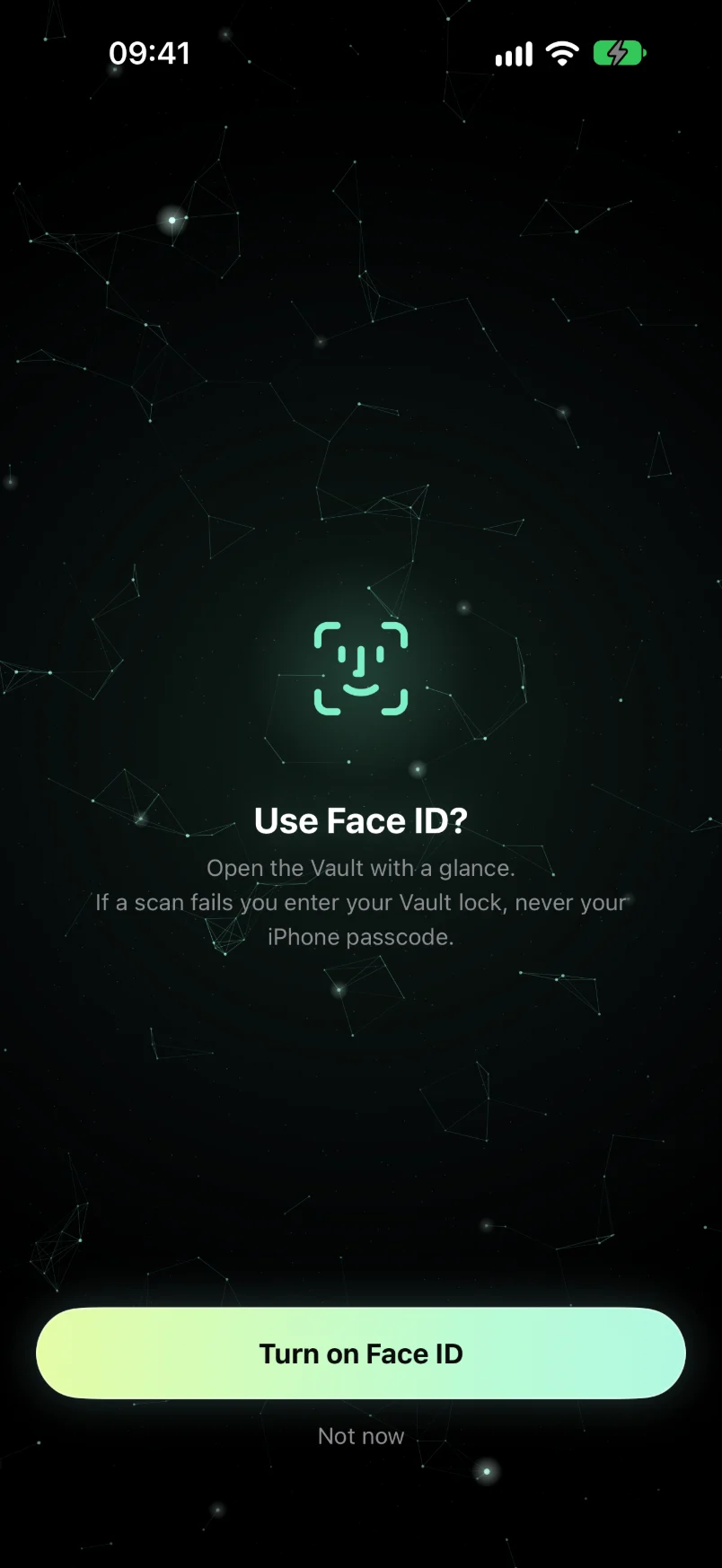
Open Settings, then Passcode, and enter your Vault Passcode. Switch Face ID on. Now a glance opens the Vault. If a scan fails, the app asks for your Vault Passcode, never your iPhone passcode. If someone adds a face to your iPhone, Face ID unlock switches itself off until you enter the Vault Passcode once.
-
5. Ultima: open Safe Places
In Settings, under Security, tap Safe Places. It carries the ULTIMA tag.
-
6. Turn on Safe Places and add a place
Switch Safe Places on. Tap Add a place, give it a name and set the Radius with the slider, from 50 to 500 metres. Tap Save Safe Place. Inside that circle, Face ID alone opens the Vault. Anywhere else, the app also asks for your Vault Passcode.
Keep in mind
Features in this guide
If something goes wrong
Face ID stopped opening the Vault.
If the Face ID on your iPhone changed, for example a face was added, the Vault's Face ID unlock switches off. Enter your Vault Passcode once, then check in Settings, under Passcode, that Face ID is on.
The app makes me wait.
You had too many wrong tries in a row. The wait grows: 10 minutes, 30 minutes, one hour, then two hours. A correct unlock resets it. If you forgot the code, the Seed phrase still works during the wait.
Face ID still asks for my passcode at home.
Face ID alone works only inside the circle of a Safe Place you saved, and only while Safe Places is switched on. Check that the place is saved and that its Radius covers where you stand. Elsewhere the Vault Passcode is needed as well.
Common questions
What happens after wrong attempts?
After 3 wrong attempts in a row you wait 10 minutes, after 4 you wait 30 minutes, after 5 one hour, and after 6 and every one after that two hours. A correct unlock resets the count.
Can I use Face ID, and what if my face data changes?
Yes. Face ID unlock is optional, and you can switch it on or off in Settings. A failed scan asks for your Vault Passcode, never your iPhone passcode. If the Face ID on your iPhone changes, the Vault's Face ID unlock switches off until you enter the Vault Passcode once.
What is a Safe Place?
A place you mark as safe in Settings, under Security › Safe Places (Ultima). There, Face ID alone opens the Vault. Anywhere else the Vault Passcode is needed as well.
Can I block screenshots?
iOS has no supported way to block screenshots, and Screenshot Protection (Ultima) may stop working after an iOS update. While the screen is being recorded or mirrored, lock and passcode screens hide their content on every plan, and the open Vault hides too when Screenshot Protection is on.
Related guides
- Photo vault recovery: forgot your passcodeReset a forgotten code with Face ID or the Seed phrase.
- Decoy app for iPhone: set up a Decoy VaultAdd a second code that opens a harmless Vault.
- Photo vault for iPhone: first-time setupThe full first-launch flow, from Get started to Home.
- Safe PlaceWhat Safe Places does and which plan it needs.