
Decoy app for iPhone: set up a Decoy Vault behind a second passcode
If you are looking for decoy apps for iPhone, a Decoy Vault is the built-in version: a harmless-looking Vault that opens with a second code, the Decoy Passcode. If someone makes you open the app, enter the decoy: they see an ordinary Vault, empty or holding a few plain photos, and nothing in it points to your real one. It is an Ultima feature.
- You need
- Infinite Vault with a Vault Passcode already set.
- Plan
- Ultima. The Decoy Passcode carries the ULTIMA tag in Settings.
- What it opens
- An empty Vault, or one with a few ordinary photos you pick.
On this page
How to set up a decoy app on iPhone: the Decoy Vault steps
-
1. Open Settings, then Passcode
Tap the gear on Home, then Passcode, and enter your Vault Passcode. The page shows four layers: Vault Passcode, Face ID, Seed phrase and Decoy Passcode. Decoy Passcode carries the ULTIMA tag.
-
2. Read the diagram and tap Set Decoy Passcode
A diagram shows the lock screen splitting in two: your Vault Passcode opens your Vault, and the Decoy Passcode opens a harmless Vault that looks normal. Three lines explain it. Use the decoy if someone makes you open the app. Nothing in it points to your real Vault. No break-in photos are taken when it opens. Tap Set Decoy Passcode.
-
3. Draw or type the decoy
The decoy has to be the same kind as your Vault Passcode: a PIN if yours is a PIN, a Pattern if yours is a Pattern. It must be different from your Vault Passcode and from your Seed phrase. If it matches your Vault Passcode, the screen says so and asks for a different one.
-
4. Choose what the decoy shows
Pick what someone sees after the decoy opens: Empty, which looks like a new install, or A few photos I pick. Photos you pick are copied into the Decoy Vault, and the originals are not deleted. Then tap Turn on Decoy.
-
5. Try it from the lock screen
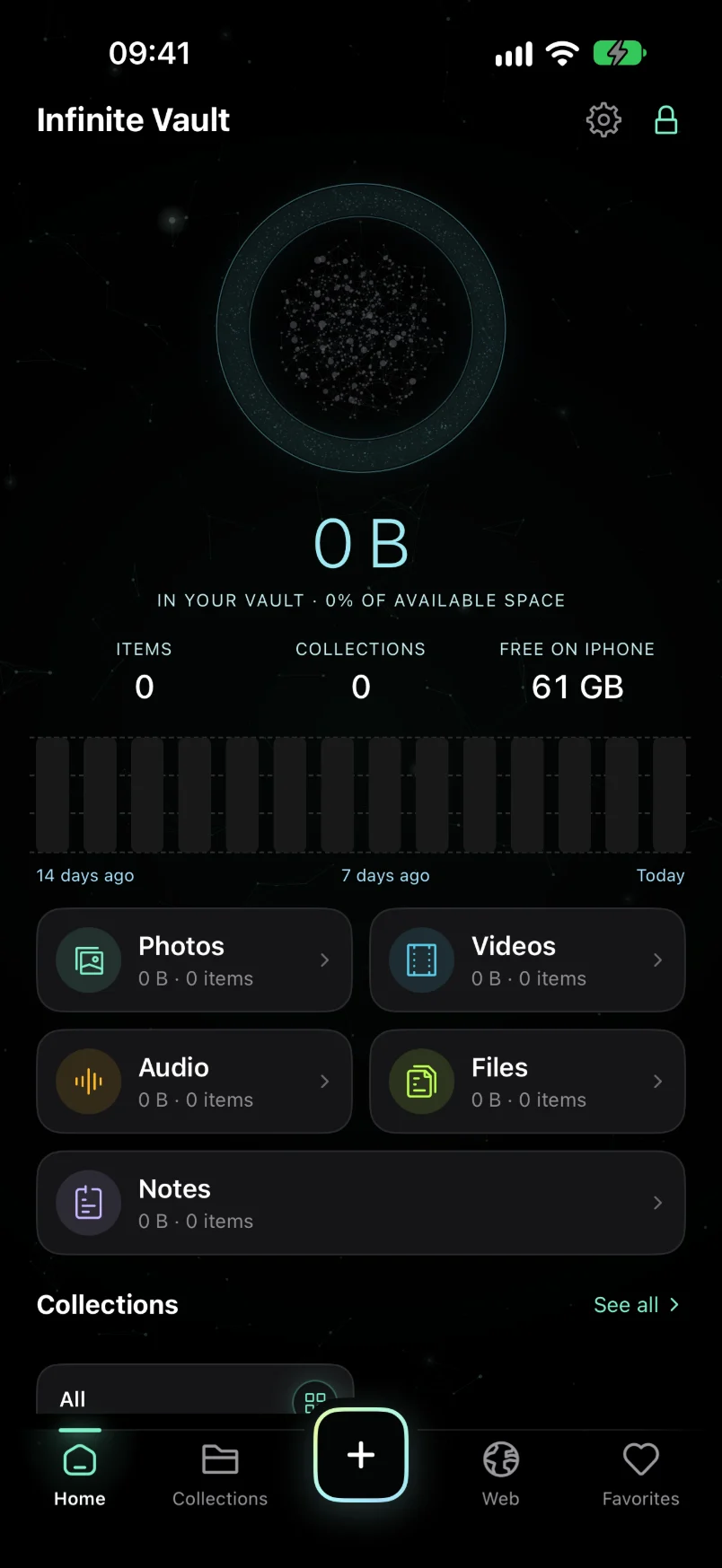
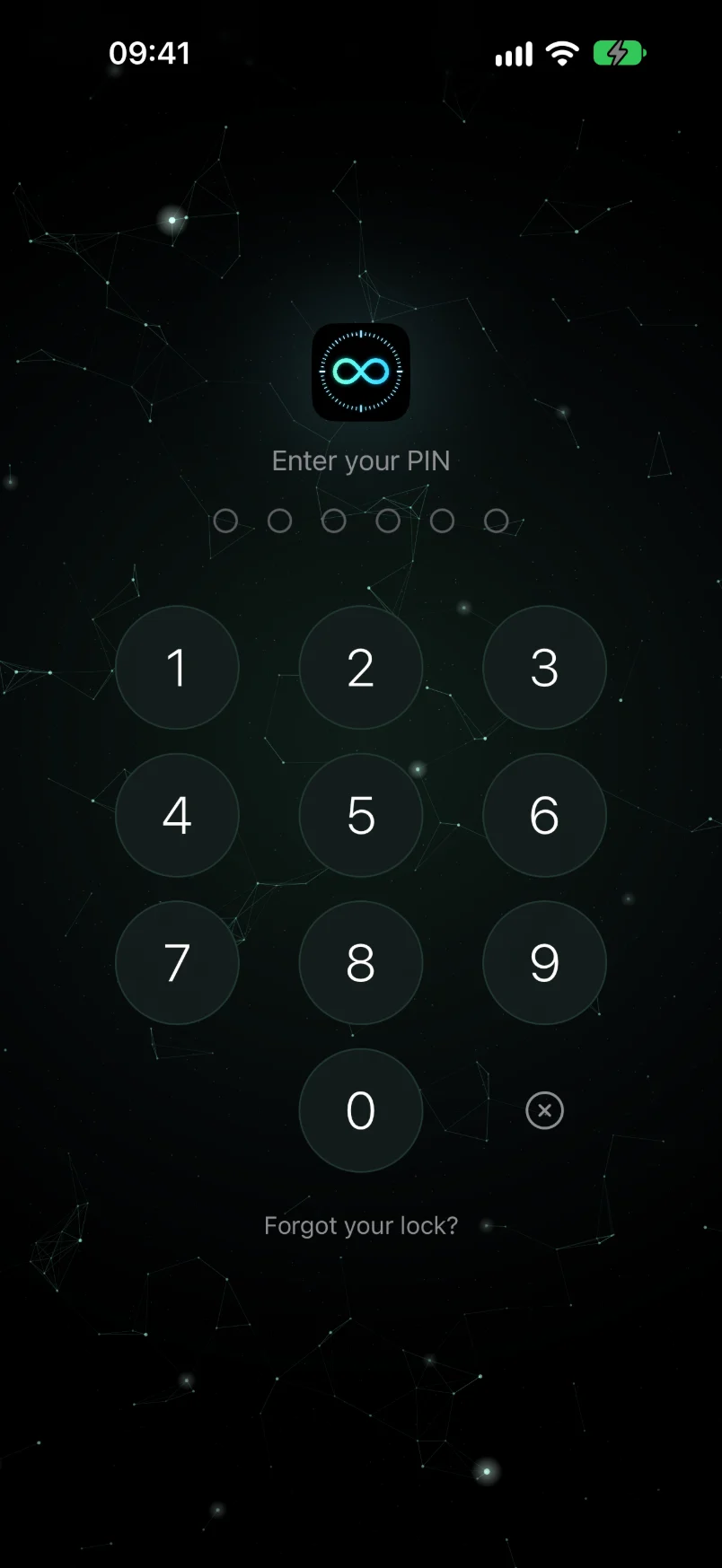
Lock the Vault, then enter the Decoy Passcode on the lock screen. You land on the decoy Home. Enter your Vault Passcode to get to your real Vault.
Keep in mind
Features in this guide
If something goes wrong
The screen will not accept my decoy.
It must be different from your Vault Passcode and from your Seed phrase, and the same kind as your Vault Passcode.
I cannot turn the Decoy Passcode on.
It is an Ultima feature and carries the ULTIMA tag in Settings. On Free, or after a plan ends, it stays off.
My decoy looks too empty.
Open the decoy setup again and choose A few photos I pick. Choose ordinary photos: they are copied, and your originals stay where they are.
The decoy is gone after I restored on a new phone.
The Decoy Vault comes back with a restore, and the same Decoy Passcode opens it, as long as your new Vault Passcode is the same kind and you have Ultima. If not, set the Decoy Passcode up again.
Common questions
What is a Decoy Vault? Is it in my Backup?
A Decoy Vault is a harmless Vault that opens with a second code, the Decoy Passcode. It looks like a fresh, empty Home, or holds a few ordinary photos you pick, and nothing in it points to your real Vault. A Backup carries it, sealed, so it comes back with a restore.
Who can see what is in my Vault?
Only you. There is no account and no server, and nobody can open the Vault for you, not even us. Your Vault Passcode is separate from your iPhone's passcode.
Can I hide the app icon?
Ultima lets you switch the icon to one of five designs: Original, Calculator, Notes, Clock or Weather. Only the icon changes. iOS shows its own icon changed alert, and the app cannot remove itself from your Home Screen. You can still find it by name in Search.
Related guides
- How to lock photos on iPhone with Face ID, a PIN or a PatternThe lock the decoy sits beside.
- Change the app icon: five disguises (Ultima)Switch the icon to Calculator, Notes, Clock or Weather.
- Back up your Vault to your computer and restore on a new phoneA Backup carries the Decoy Vault, sealed.
- Ultima planWhat Ultima includes.