
Transfer files from iPhone to PC over Wi-Fi with Browser mode
To transfer files from iPhone to PC over Wi-Fi with Infinite Vault, you use Browser mode: your iPhone shows a local address and a code, and a browser on your computer opens it. There is no cable, no program to install and no server in between, so you can also move photos from iPhone to computer wirelessly.
- You need
- Your iPhone and a computer with a browser, both on the same Wi-Fi, and your Vault Passcode.
- Plan
- Free. Browser mode is on every plan.
- No cable?
- Right: no cable and nothing to install. For a cable, USB is free on every plan.
On this page
How to open your Vault from a computer over Wi-Fi
-
1. Open the Wi-Fi page on your iPhone
Go to Settings, tap Transfer, then Wi-Fi. You can also reach it from Export in Select mode. The page reads Browser mode, Ready.
-
2. Note the address and the code
You see an Address, such as 192.168.1.24:8080, with a Copy button, and a Code that is new every time. Under them are three checks: Same Wi-Fi, Screen stays awake and Browser signed in, which waits for the code. Leave this page open, because leaving it ends the session.
-
3. Open the address on your computer
On a computer on the same Wi-Fi, open a browser and type the address exactly as the iPhone shows it. You install nothing. The browser may label the page Not Secure; the tips below explain why.
-
4. Sign in with the code and your Vault Passcode
Type the code from your iPhone into the six boxes; it says Matches when it is right. Then type your Vault Passcode on the keyboard and click Open Vault. If your Vault uses a Pattern, click Use your Seed phrase instead. Three wrong sign-ins end the session and the iPhone shows a new code.
-
5. Download files
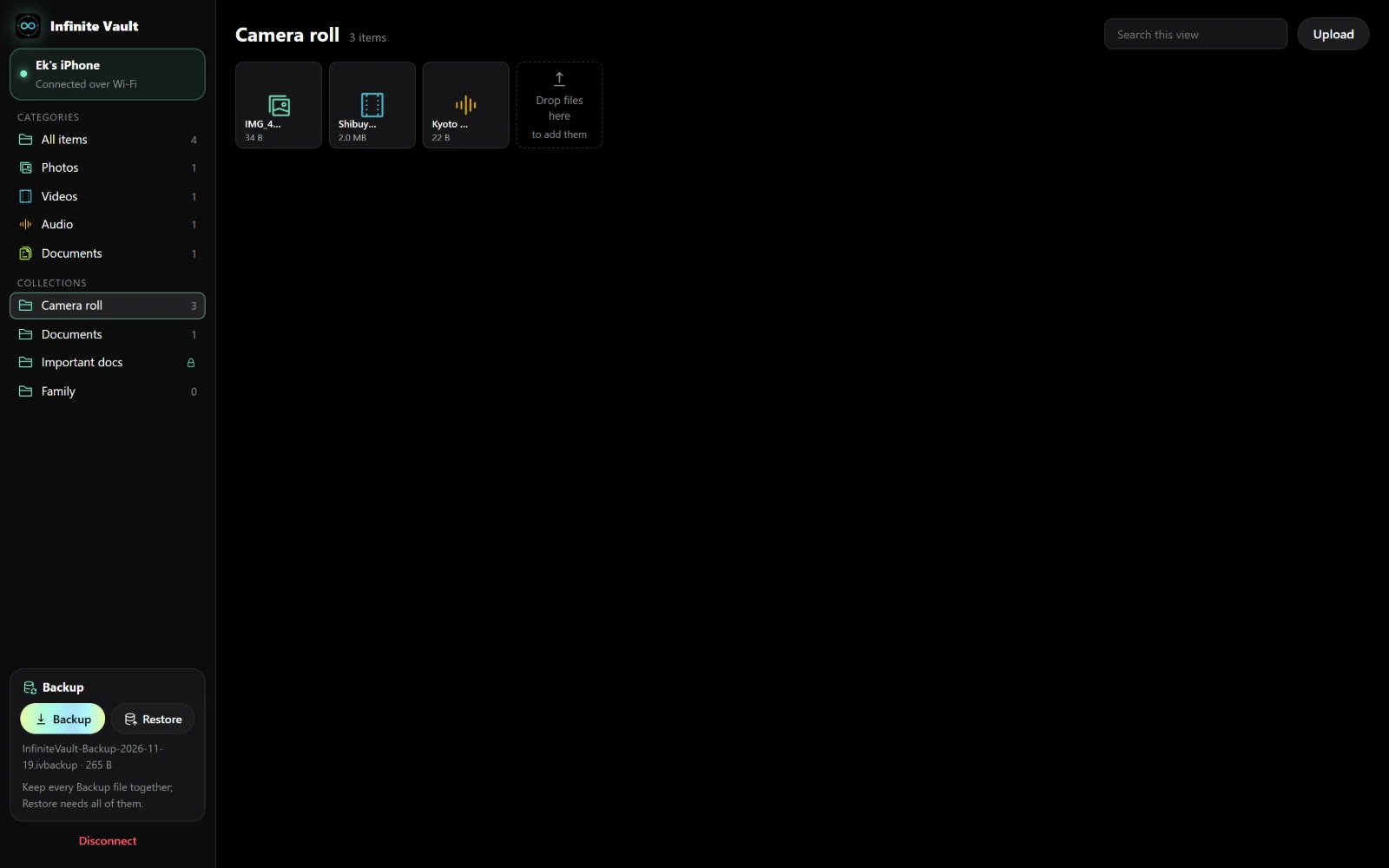
Your Vault appears like a desktop photo app, with Categories and Collections in the sidebar. Open a Collection, hover over a thumbnail to download one file, or click several thumbnails and choose Download as zip.
-
6. Upload files
Click Upload, or drop files on the last tile, into the Collection you have open. A card shows progress, such as “Adding 3 files” and “1 of 3 done”. Keep the tab open until it finishes.
-
7. End the session
On the iPhone, tap Stop session, or on the computer click Disconnect. Closing the browser tab also signs you out, and the session ends when the app leaves the iPhone’s screen.
Keep in mind
Features in this guide
If something goes wrong
The address will not open on my computer.
Check that the computer is on the same Wi-Fi as the iPhone (the Same Wi-Fi check shows the network name), that the iPhone screen is on, and that the Wi-Fi page is still open. Then type the address again exactly as shown.
Browser mode in FeaturesThe code is not accepted, or the session ended.
Three wrong sign-ins end the session. Look at the iPhone: it shows a new code. Leaving the Wi-Fi page or the app leaving the screen also ends the session, so open the Wi-Fi page again and start from step 3.
Browser mode in FeaturesMy Vault uses a Pattern and I cannot draw it with a mouse.
On the sign-in card, click Use your Seed phrase and type it in place of the Vault Passcode.
Forgot or change your passcodeI want to move files without Wi-Fi.
Use a USB cable instead. It is free on every plan.
Move photos by USBQuestions
How do I move files to my computer?
By USB, free: pick Items, choose Export, then USB cable, and drag them out of the Export folder in Finder (Mac) or the Apple Devices app (Windows). Over Wi-Fi, open Browser mode: a browser on your computer opens the address your iPhone shows.
Is there a desktop app? Do I install anything?
Browser mode needs nothing installed. A computer reaches the Vault through its browser over Wi-Fi, or through Finder (Mac) or Apple Devices (Windows) over USB. Every plan also has the Desktop App for Mac and Windows, for Desktop Sync.
Is Browser mode safe on my Wi-Fi?
Files are encrypted on your iPhone before they cross the Wi-Fi and are decrypted in the browser page, so someone else on the network sees nothing readable. Your browser will still label the page Not Secure, because it uses plain http on your home network. Use it on a network you trust. Three wrong sign-ins end the session, and the iPhone shows a new code.
Browser mode will not open.
Check that your computer is on the same Wi-Fi as the iPhone, that the iPhone screen is on, and that the Wi-Fi page is still open, because leaving it ends the session. Three wrong sign-ins also end the session, and the iPhone then shows a new code.
Related guides
- Move photos from iPhone to PC by USBThe free way, with a cable.
- Back up your Vault to your computerBackup files can be downloaded through Browser mode.
- Forgot or change your passcodeYour Seed phrase signs in when a Pattern is awkward.
- Browser mode in FeaturesThe short description next to the other features.