
Private browser app for iPhone: save images straight to your Vault
Infinite Vault has a private browser app built in: the Web tab. It works like an incognito window, so cookies, cache and logins disappear when the Vault locks, and anything you save goes into a Collection instead of your Photos app. This guide shows how to use the private browser on your iPhone.
- You need
- Infinite Vault, unlocked, and an internet connection. The Web tab is one of only two places the app uses a network.
- Plan
- Free. The Web tab is on every plan.
- What is kept
- Only what you save, plus bookmarks and history, and those live inside the Vault.
On this page
How to browse privately and save images to your Vault
-
1. Open the Web tab
Tap Web in the tab bar. The start page carries the badge “Private · nothing is saved”, a large search or address field, your Bookmarks and a row called Saved from the web.
-
2. Search or type an address
Type a search or a website address in the large field. The page fills the screen and the tab bar steps aside. A dark floating pill near the bottom shows the private eye icon and the site name. Tap the pill to open the address bar, with back, forward, reload, bookmark and a way back to the start page.
-
3. Touch and hold an image
Touch and hold a picture on the page. It lifts over a dimmed page with a menu: Save to Vault, Save to Photos, Copy and Open Image. A video can be saved to the Vault or to Photos the same way.
-
4. Save to Vault
Choose Save to Vault. A sheet shows how many photos and their size, and lists your Collections with Favorites first and your current pick ticked. Tap a Collection, or + New Collection, then tap Save. A link to a file, such as a PDF, a video or a zip, downloads straight into the Vault.
-
5. Add bookmarks
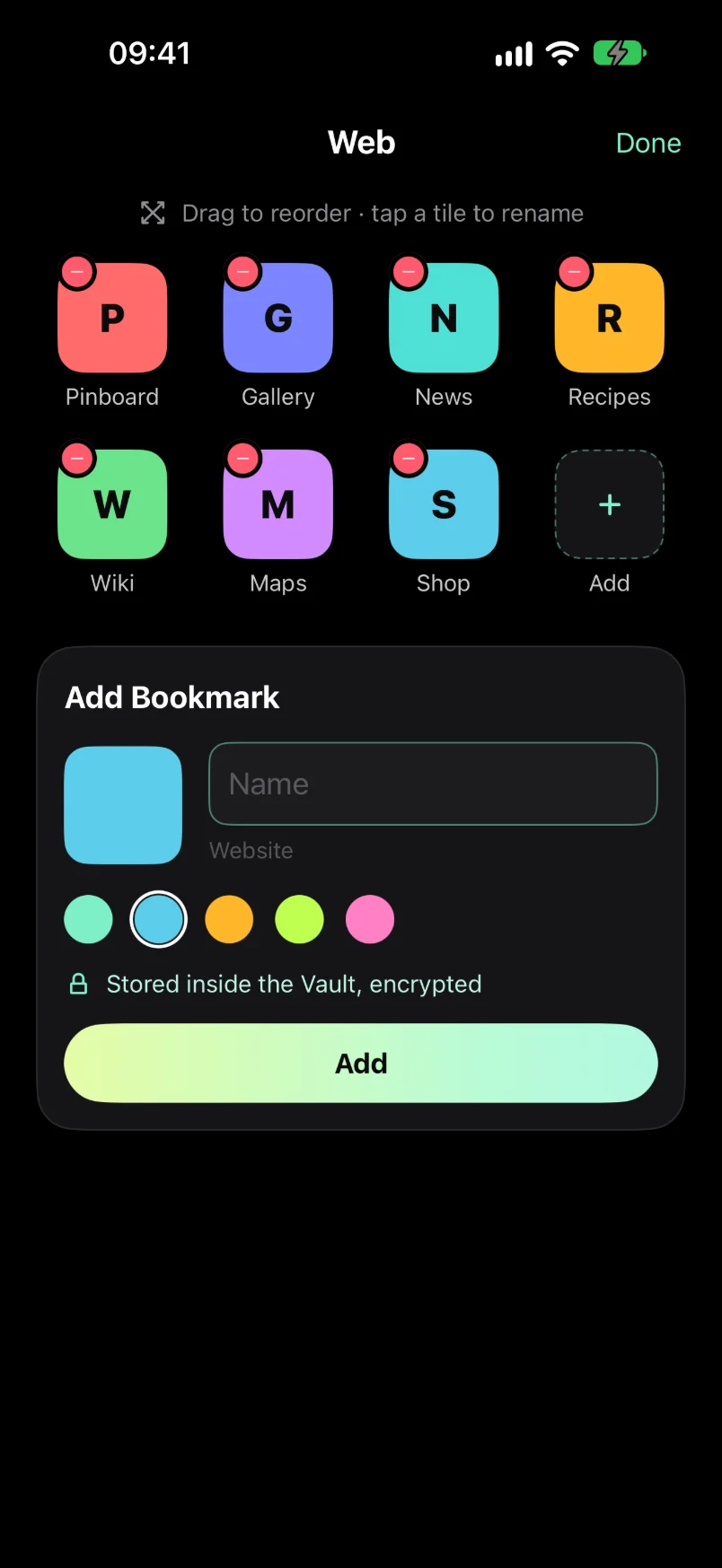
On any page, tap the bookmark button in the address bar, or use Add on the start page. On the start page you can drag tiles to reorder them, tap a tile to rename it and remove one with its remove button. Bookmarks are stored inside the Vault, encrypted.
-
6. Check History and Downloads
History is kept inside the Vault, encrypted, and grouped by day. Clear removes it. Downloads sits beside History and lists files in progress and files already saved; a tray at the bottom shows a download while it runs.

Keep in mind
Features in this guide
If something goes wrong
A video will not save.
Only files the page actually serves can be saved. Streaming sites that block downloads stay blocked, so there is nothing for the app to catch.
Save from a pageA site logged me out.
That is by design. Logins live in memory only and vanish when the Vault locks or the tab closes.
Private browser in FeaturesI chose Save to Photos and now the image is outside the Vault.
Import it from Photos into the Vault. Import moves it and removes the original.
Hide photos and videos: ImportI cannot find what I saved.
Look in the Collection you picked on the Save to Vault sheet. The latest saves also show in the Saved from the web row on the start page.
Save from a pageQuestions
Do I need an account, and does it work offline?
No account. Infinite Vault has no accounts and no server, and your Vault opens without a connection. Only the Web tab and Browser mode use a network, and Browser mode stays on your own Wi-Fi.
Are my files uploaded anywhere?
No. There is no account and no server of ours, so your files stay on your iPhone. A copy exists only if you make one yourself, for example a Backup to your own iCloud or computer.
Who can see what is in my Vault?
Only you. The Vault is encrypted on your iPhone and opens with your Vault Passcode, or with Face ID if you turned it on. Nobody else can open it, including us, because there is no server holding a copy.